Short links and QR codes on linq.my
Shorten any link on linq.my, get a QR code for it, and count every click and scan. What each plan includes, endings, reports, renewing and safety checks.
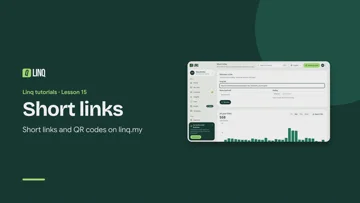 Watch the video: Short links 0:57 · Lesson 15 of the tutorials · English, French and Arabic
Short links turns a long link, such as a menu, a form or a slide deck, into a short one on linq.my. Each short link has a QR code, and Linq counts every click and every scan. It’s on every plan. Open Short links from the menu (on your phone, under More).
For an overview, see Short links on linq.my.
Shorten a link
- Under Shorten a link, paste the Long link. If you leave out
https://, Linq adds it. - Optionally, give it a Name, such as Spring menu, so you can find it later.
- On a paid plan, choose its Ending, like
linq.my/spring-menu, or leave it empty for a random one. - Select Shorten.
Your new link is at the top of Your links, ready to Copy. Search your links by name, ending or destination.
Endings
- On Free, every link gets a random ending of 7 characters.
- On the paid plans, you can choose your own: 3 to 50 lowercase letters, numbers or dashes, not starting or ending with a dash. Endings don’t care about capitals:
linq.my/Promoislinq.my/promo. - Some endings are reserved, such as
helporpricing. If an ending is taken, try another.
What each plan includes
| Free | Pro | Teams | Business | |
|---|---|---|---|---|
| Links working at once | 10 | 500 | 1,000 | No limit |
| How long a new link works | 30 days | 365 days | 730 days | Until you delete it |
| Choose your own ending | ✓ | ✓ | ✓ | |
| Renew a link | ✓ | ✓ | ✓ | |
| Report | Clicks per day, last 7 days | Up to a year, with where clicks come from | Same as Pro | Same as Pro |
| Your card on linq.my | ✓ | ✓ | ✓ |
- Expired links don’t count toward the number working at once.
- Moving down a plan changes nothing on links you already have: they keep their ending and the date they stop working. New links follow your new plan.
- Each link shows Works until and a date, or Never expires on Business.
See Pricing to compare the plans.
QR codes
Select QR code on a link to get its code. Pick a color, then Download PNG for screens and documents, or Download SVG for print: it stays sharp at any size.
Scans of a link’s QR code count as clicks on the link, marked as QR code scans. On the paid plans, the report shows how many came from each.
The report
Select Report on a link to see its clicks, or look at All your links for everything together. Clicks include scans of the link’s QR code.
-
On Free: clicks per day for the last 7 days.
-
On the paid plans: pick the last 7, 30 or 90 days, or a year, and see where clicks came from:
- Countries
- Where from: the apps and sites people came from
- Devices: phone, tablet or computer
- Browsers and Systems
- Link or QR code: how many clicked and how many scanned
Select Export CSV to download the clicks per day.
Clicks from bots and from link previews, such as the preview a chat app shows when you paste a link, aren’t counted. Many clicks in a row from the same visitor aren’t all counted either. The link itself always works.
Edit, renew or delete a link
- Edit changes where a link goes, or its name. The short link stays the same, so everything already shared or printed keeps working.
- Renew (paid plans) makes a link work for your plan’s full time again, from today. It also brings back an expired link, if you have room for one more.
- Delete stops the link straight away, everywhere it was shared or printed, and deletes its report. Nobody else can ever take its ending, so a printed QR code never starts pointing somewhere you didn’t choose. You can use the ending again yourself.
Safe links only
Short links must go to public web pages. Linq refuses links that:
- aren’t web links (
https://orhttp://), or only work inside a private network; - have a username or password in them;
- are already short links, from linq.my or another shortener;
- download apps, installers or archives.
Every destination is checked with Google Web Risk when you make a link or point it somewhere new, and checked again every day after that. A link whose destination turns out to be unsafe is turned off: it shows a page saying so instead of sending people on, and it can’t be pointed anywhere else.
Put your card on linq.my
With Pro, Teams or Business, your card can live on linq.my too, at an address like linq.my/p/your-name. It’s shorter to type, and makes a lighter QR code.
- Open My card and go to Card address.
- Choose linq.my instead of Linq app.
Your card’s link, QR code, email signature and Google Wallet pass then use the linq.my address. Your card opens at both addresses either way, so links and QR codes you shared before keep working. If your card uses your team’s own domain, that domain is used instead. See Team tools.
Related
Last updated
Need more help?
Check the FAQ or troubleshooting, or contact us.