How to make a digital business card for free, step by step
How to create a digital business card in about two minutes: add your details and photo, publish it, get your QR code and share it. Free, and no app needed.
A digital business card is a small web page with your name, photo, role and contact details. You share it with a link or a QR code, and the people you meet can call you, email you or save you to their contacts in one tap. Unlike a paper card, it never runs out and you can update it whenever something changes.
This guide shows you how to make one for free, step by step. It takes about two minutes, and you can do it all from your phone.
What you need
- A phone or a computer with a web browser.
- Your details: name, job title, company, phone number, email and website.
- A recent photo of yourself (optional, but it helps people remember you).
That’s it. You don’t need design skills, a printer or an app.
Step 1: Choose a digital business card app
Plenty of apps make digital business cards. Before you pick one, check that:
- The free plan is actually useful. You should be able to create, publish and share a card without paying.
- People can open your card without an app. Your card should open in any browser, on iPhone or Android.
- It gives you a QR code and a link, and both keep working when you edit your card.
- Visitors can save your contact in one tap, straight to their phone’s contacts.
- You hear from the people you meet, for example with a contact form on your card.
We make Linq, so this guide uses it, but the steps are similar in most apps. If you’d like to compare options first, read our roundup of the best digital business card apps.
Step 2: Create your free account
Go to app.linq-business.com/sign-up and continue with Google, GitHub, or your email address and a password. No payment details needed.
Linq creates your card for you straight away. It starts as a draft, so nobody can see it until you publish it.
Step 3: Add your details
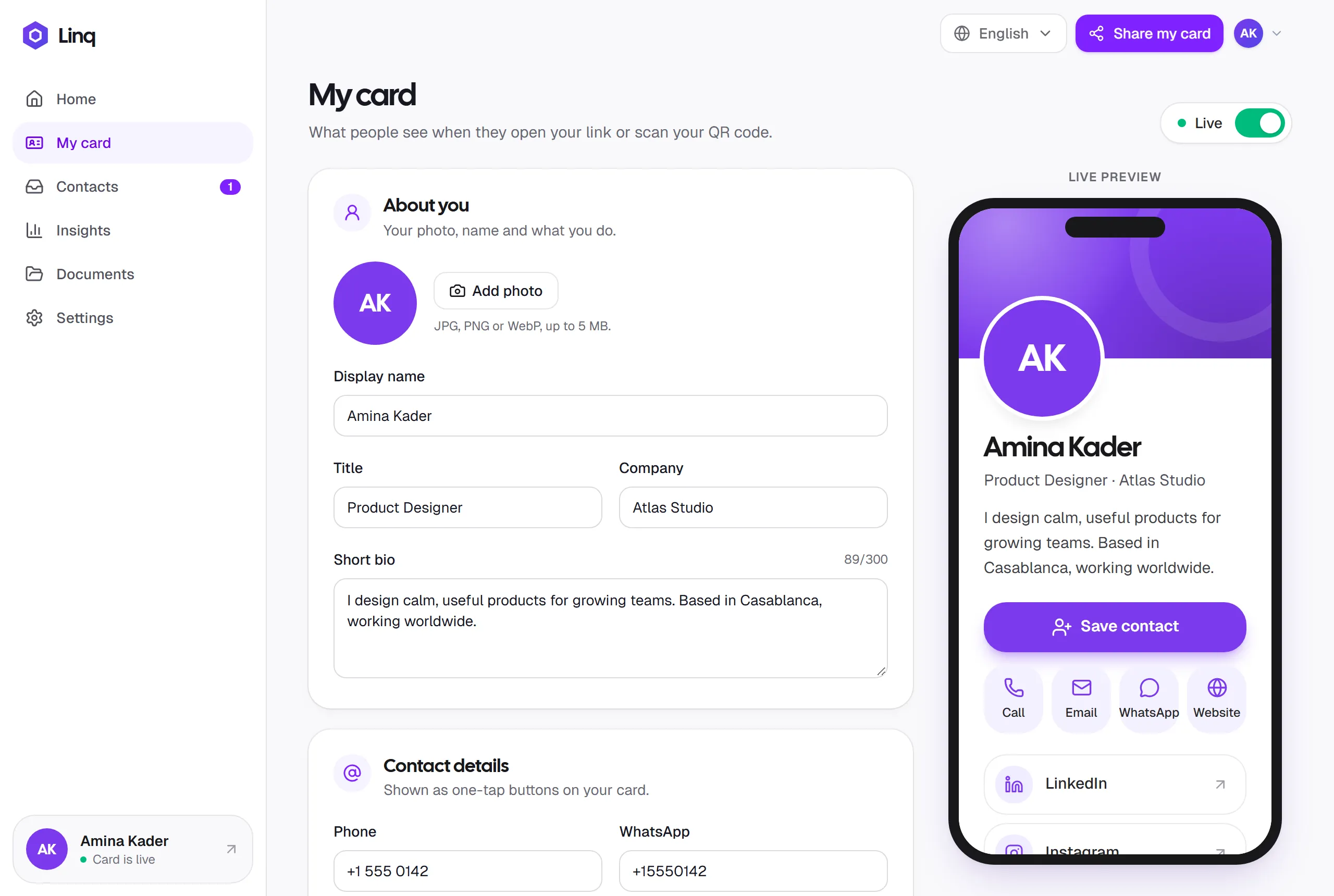
Open My card and fill in:
- Your name, the only required field.
- Your title and company, for example Product Designer · Atlas Studio. Be specific: it’s the first thing people read after your name.
- A photo. Use good light and look at the camera; card photos are shown in a circle.
- Contact details: phone, WhatsApp, email and website. Each one becomes a one-tap button, so only add the ones you actually answer.
- Social links such as LinkedIn or Instagram, shown with their own icons.
A live preview shows your card exactly as visitors will see it while you type.
Step 4: Make it yours
A few small touches make your card more memorable and more useful:
- Write a short bio. One or two sentences about what you do and who you help.
- Pick a card color. Choose one of the eight presets, or your exact brand color with Linq Pro.
- Attach a document, such as your CV, portfolio or brochure, as a PDF that visitors can open from your card.
Want more ideas? Read how to make a digital business card people actually save.
Step 5: Publish your card and get your QR code
When you’re happy, select Save, then publish your card: select Publish now on the Home screen, or turn on the Live switch in My card.
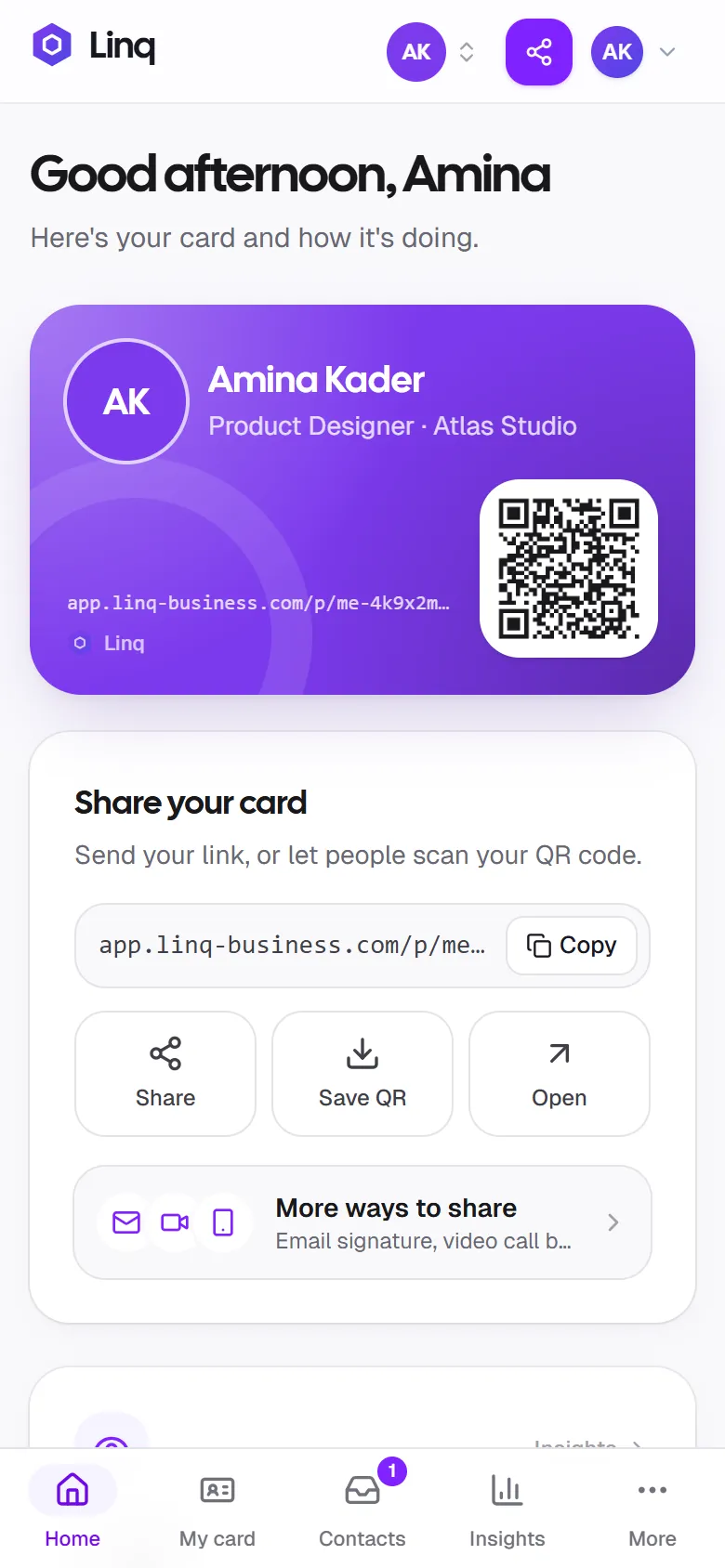
Your card now has its own link and a QR code. Both stay the same when you edit your card later, so you can share them right away and keep improving your details.
Step 6: Share it
On the Home screen you’ll find three ways to share:
- Copy your link and paste it anywhere: messages, email, your LinkedIn profile.
- Share opens your phone’s share sheet, so you can send your card on WhatsApp, Messages or email.
- Save QR downloads a high-resolution QR code to print, add to slides or set as your lock screen.
When you meet someone in person, open Linq and let them scan the QR code with their camera. For more ideas, see 9 practical ways to share your digital business card.
Step 7: Follow up
Your card has a Stay in touch form, so people can send you their name, email, phone number and a message. They land in Contacts, where you can email, call or save them in one tap and mark who you’ve followed up with. Insights shows how many people viewed your card and got in touch.
How to create a digital business card on your phone
You can follow every step above on an iPhone or Android phone. Open app.linq-business.com in your phone’s browser and sign up. Linq has a tab bar at the bottom for your card, your contacts and your insights, so there’s nothing to download from the App Store or Google Play.
How a digital business card with a QR code works
Your QR code contains your card’s link. When someone points their phone camera at it, their phone offers to open the link, and your card appears in their browser. They don’t need a special app or account.
Because the QR code points to your link rather than storing your details, it never goes out of date. Change your phone number, job or photo, and everyone who scans your code, even from a slide you presented last year, sees your latest card.
Frequently asked questions
Can I make a digital business card for free?
Yes. On Linq’s Free plan you can create, publish and share your card, use your QR code and collect contacts for as long as you like. Linq Pro adds more cards, teams, full insights and a custom card link for $5.99 a month.
Do I need an app to make or share a digital business card?
Not with Linq. You make your card in your browser, and the people you meet open it in theirs.
How long does it take?
About two minutes for a basic card. Add a bio, documents and social links whenever you have a moment.
Can I print my QR code?
Yes. Select Save QR to download a high-resolution image for flyers, name badges, packaging or a paper business card. If you’d rather hand over something that works with a tap, you can also design a Linq NFC card.
Ready? Create your free digital business card. It takes about two minutes.