What people see when they open your card
A tour of your public Linq card: save contact, one-tap buttons, social links, documents, the Stay in touch form and the two-way exchange.
When someone scans your QR code or opens your link, they see your card in their browser. They don’t need an app or an account, and it works on iPhone, Android and computers.
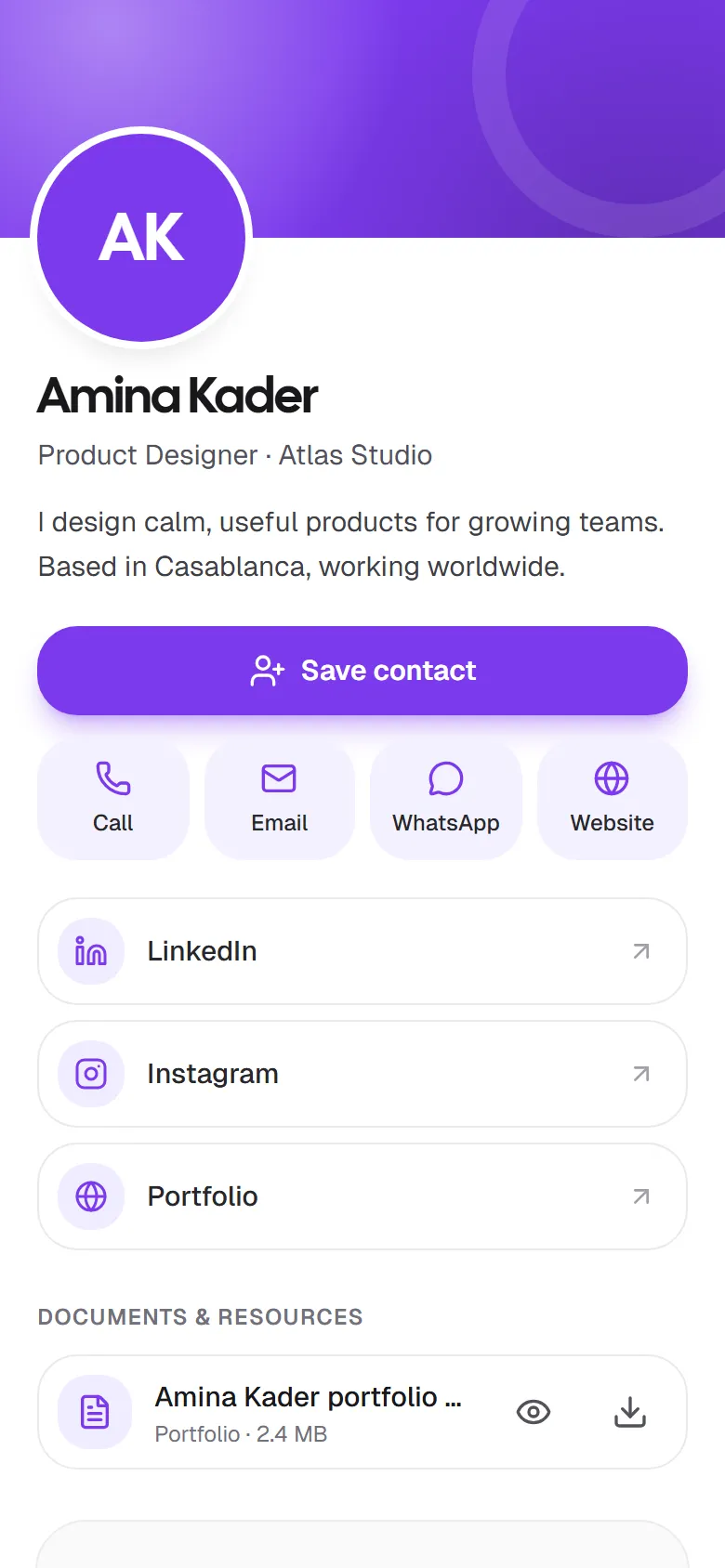
From top to bottom
- Header and photo in your card color, with your photo or initials.
- Name, title and company, then your bio.
- Save contact: gives visitors your contact file (vCard). On a phone it opens the share sheet so they can add you to Contacts; on a computer it downloads. It includes your name, title, company, phone, email, WhatsApp number, website and bio.
- Quick buttons: Call, Email, WhatsApp and Website, depending on which details you filled in.
- Social links, each with its icon.
- Documents & resources: any public documents you added, with buttons to view or download them. See Add documents to your card.
- Stay in touch: a short form where visitors leave their name and an email or a phone number, and optionally their company, job title and a note. What they send arrives in your Contacts.
At the bottom, visitors can switch the card’s language between English, Français and العربية. Cards on the Free plan also show a small Create your own link to Linq; Pro cards don’t.
Two-way exchange
Right after a visitor taps Save contact, Linq asks if they’d like to share their details with you too. The same short form opens from the bottom of the screen, so they can send their name, email or phone, company and job title in a few seconds, without scrolling to the end of your card. They can also select Not now.
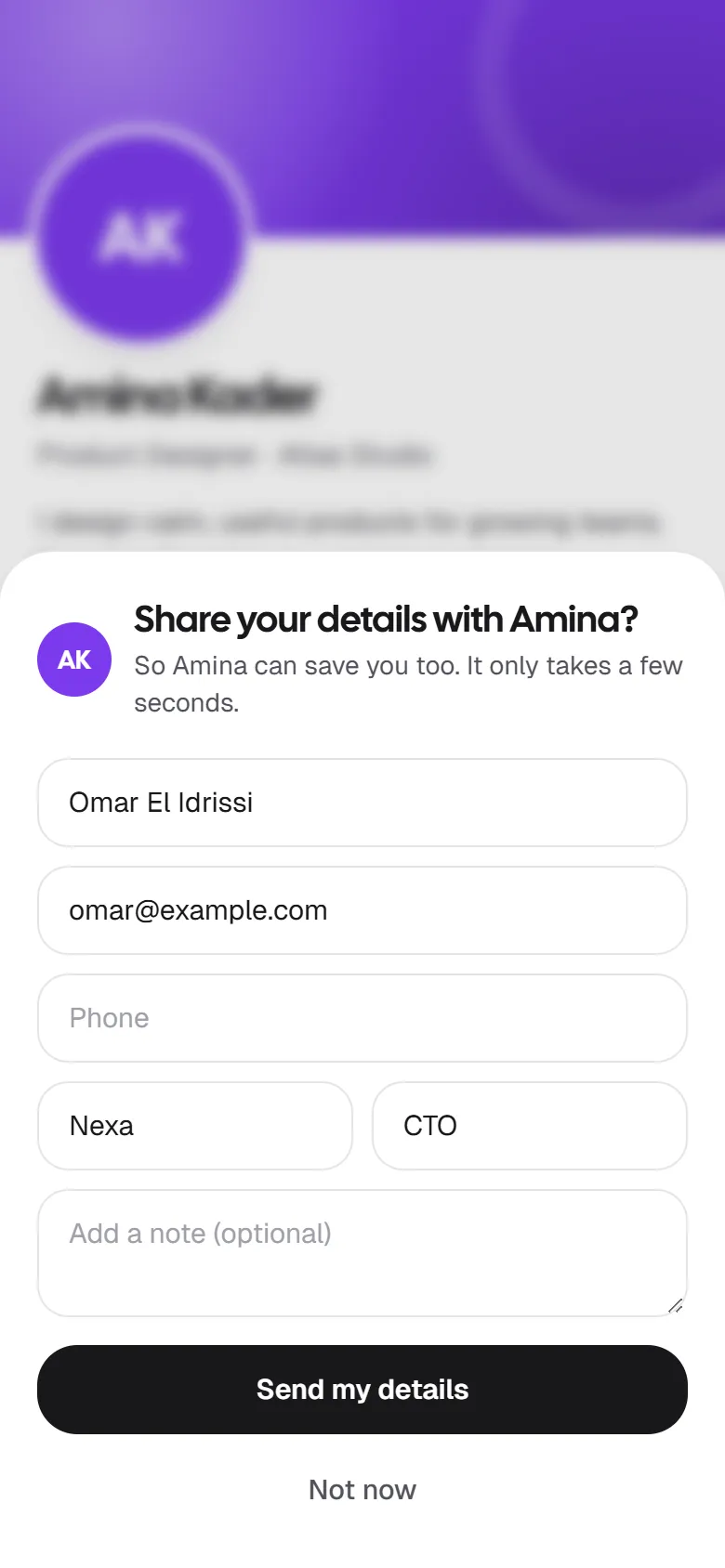
They’re only asked once per visit, and not at all if they’ve already sent you their details. What they send arrives in your Contacts like any other contact.
Your colors, everywhere
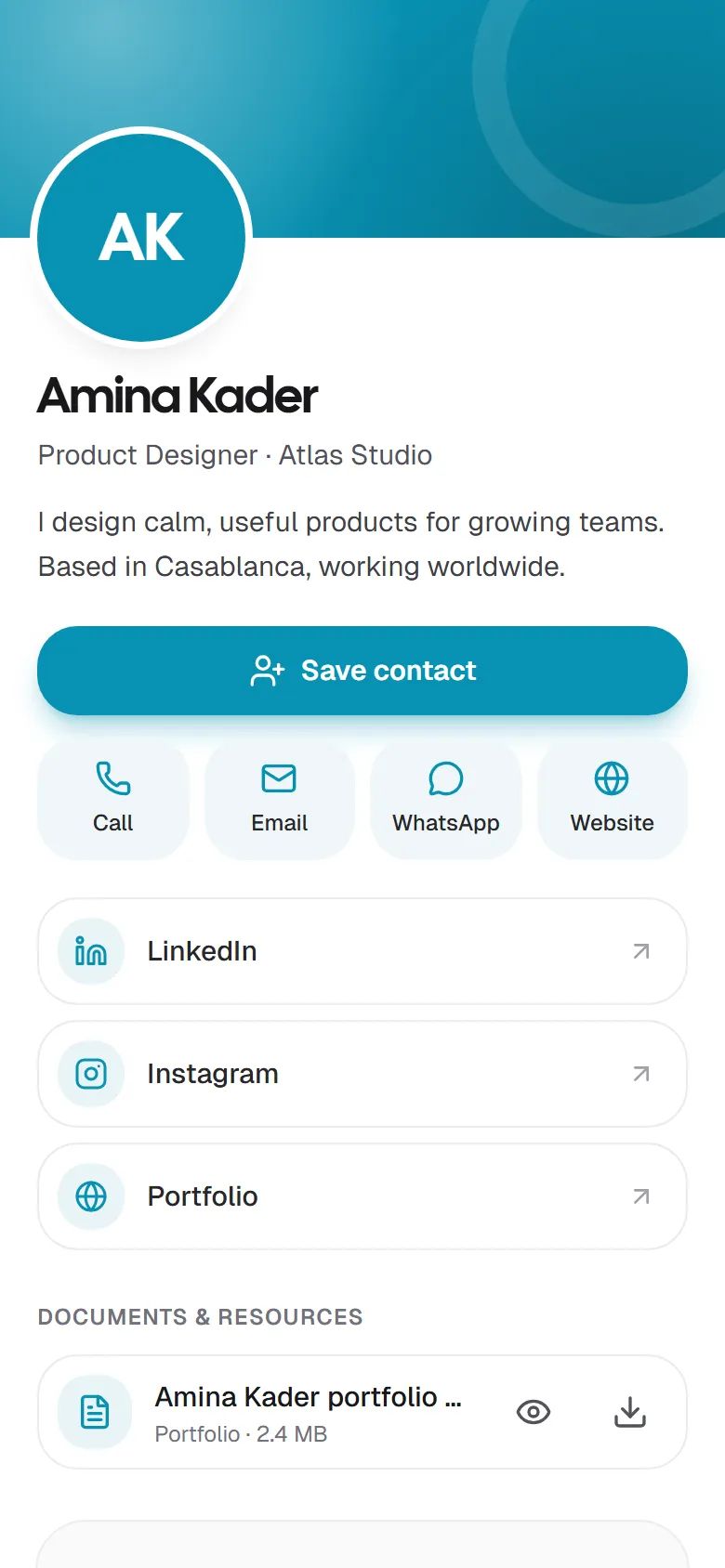
The card color you choose in My card is used for the header, the Save contact button and the icons.
When the card isn’t available
If your card isn’t live, or the link is mistyped, visitors see This card isn’t available instead of your details. Nothing about you is shown on that page.
Privacy notes
- Only what you fill in is shown. Leave a field empty to hide it.
- Documents only appear if they’re set to Public and not hidden.
- Each visit is counted in your Insights. Visitors only share their details if they choose to fill in the Stay in touch form or the exchange that follows Save contact.
Last updated
Need more help?
Check the FAQ or troubleshooting, or contact us.