Photograph it, check it, save it
- Open Scan in Linq and choose Paper business card.
- Lay the card flat in good light, fill the photo with it, and take the picture.
- Check what was read: name, job title, company, email, phone and website. Correct anything that's wrong.
- Select Save and scan the next, and carry on through the stack.
Nothing is saved until you say so. Each contact lands in your Contacts, where you can note where you met, add a tag and set a follow-up reminder. Step by step: Scan cards and badges.
Free, and read on your own device
On the Free plan, Linq reads 10 cards a month right on your phone or computer. The photo never leaves your device: only the details you check and save reach your Contacts. It works in the browser, with nothing to install.
AI reading for harder cards
Unusual layouts, small print, busy designs: on the paid plans, an AI reader handles the harder cards. The photo goes to our reading service, which is asked not to keep it for reuse, and Linq deletes it as soon as it's been read. You still check every field before saving.
Scans on each plan
| Scans a month | Free | Pro | Teams | Business |
|---|---|---|---|---|
| Paper business cards a month | 10 | 100 | 300 | 500 |
| Event badges a month | — | — | 1,000 | 2,000 |
| Read by | Your device | AI reader | AI reader | AI reader |
Scans renew on the 1st of each month. Pro starts with a 7-day free trial, and Teams is $14.99 a month for a team. Compare the plans.
Event badges, on Teams and Business
At a conference, choose the event and scan the badges of the people you meet: everyone is filed under the event, for its dashboard and follow-ups. A badge often shows only a name and a company, so you can save someone without an email or phone and add them later. If a badge has a QR code with the person's details, it's read from the code on your phone, without using a scan. Event lead capture.
Or scan the QR code on their card
Many cards now carry a QR code. Select Scan QR code and point your camera at a Linq card, a vCard or MeCard code, or a code with an email address or phone number: the details are filled in from the code, and it doesn't count toward your monthly scans. From another Linq card, you can send them your details in the same step.
More in Scan and add contacts.
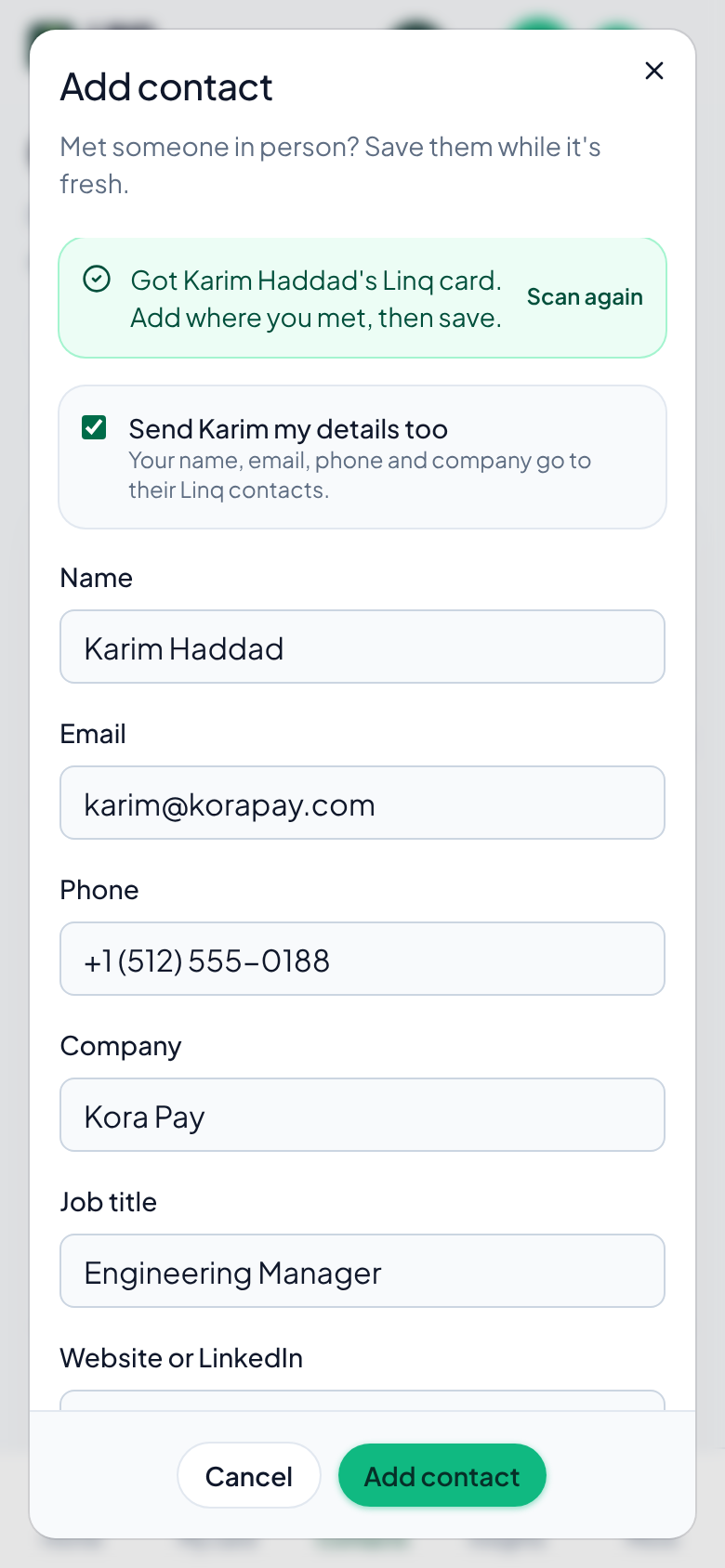
After the scan
- Where you met, tags and a follow-up date on every contact, on every plan.
- Private notes and CSV export with Pro.
- Your CRM: with Pro, each contact you save can go to Zapier, Make or your own server. Integrations.
- Your own card back: hand them your QR code while you're scanning theirs.