Edit your card
Add your photo, name, role, bio, contact details, social links and card color in the My card editor, with a live preview.
Everything on your card is edited from My card. On a computer, a live preview of your card sits next to the form. On a phone, select Preview at the top of the page to see it full-screen.
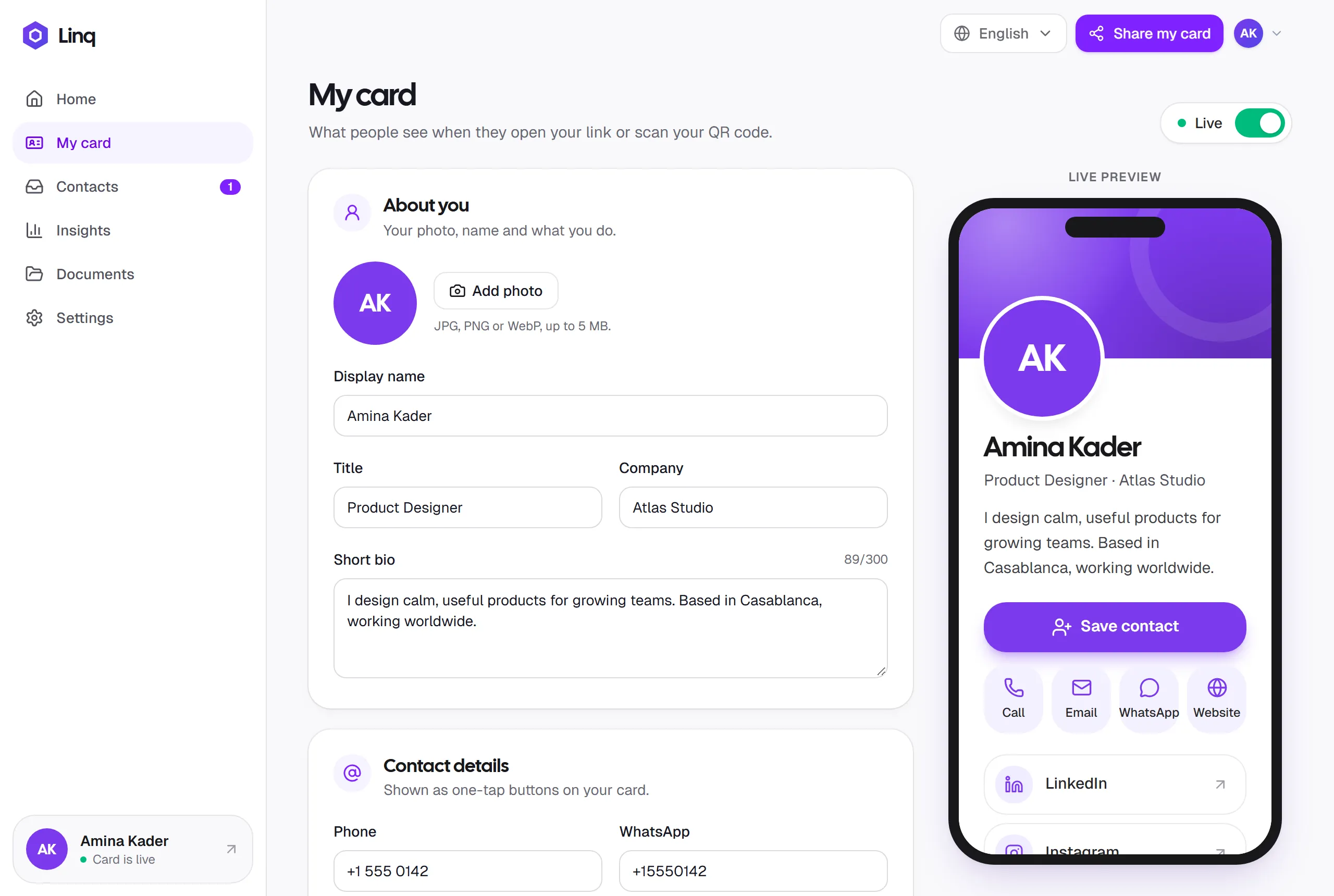
About you
| Field | Shown on your card as |
|---|---|
| Photo | A round photo at the top. Without one, your initials appear on your card color. |
| Display name | Your name, in large type. Required. |
| Title and Company | One line under your name, for example Product Designer · Atlas Studio. |
| Short bio | A short paragraph under your name, up to 300 characters. |
Add or change your photo
- Select Add photo (or Change photo).
- Choose a JPG, PNG or WebP image up to 5 MB.
The photo is saved immediately; you don’t need to select Save. To remove it, select Remove.
A square photo with your face centered works best, because it’s shown in a circle.
Contact details
Each detail you fill in becomes a one-tap button on your card:
- Phone → Call
- WhatsApp → opens a WhatsApp chat with you. Enter the full number with the country code, for example
+212 600 000 000. - Email → opens the visitor’s email app
- Website → opens your site. You can type it with or without
https://.
Leave a field empty to hide its button. These details are also included when someone saves your contact to their phone.
Social links
Select Add social link, choose a platform and paste the link to your profile. Supported platforms show their own icon on your card:
LinkedIn · Instagram · X · Facebook · TikTok · YouTube · GitHub
For anything else, such as a portfolio, booking page or online shop, choose Other link and give it a label. The label is what visitors see, for example Portfolio or Book a call.
Links appear on your card in the order you add them. To remove one, select the trash icon next to it.
Card color
Choose one of the eight presets, or, with Pro, select + to pick any color, such as your brand color. On the Free plan the + shows a lock. The color is used for your card’s header, buttons and icons. Select Reset to go back to the default violet.
If you picked a custom color while on Pro, it stays on your card if you go back to Free.
Text on buttons switches between white and black automatically, so your card stays readable whatever color you choose.
Your card link
Every card starts with a link like app.linq-business.com/p/me-k3j9x0q2w8ab. With Pro, you can replace the end with something easy to remember, like /p/amina-kader:
- In My card, go to Your card link.
- Type the link you want: 3 to 30 lowercase letters, numbers or dashes. Spaces become dashes.
- Select Save link (or press Enter).
Your QR code and share buttons switch to the new link right away. Links and QR codes you shared before keep working: they open your card at its new address. If someone else already has the link you want, you’ll be asked to pick another. Links can’t start with me- or ws-.
The link is saved on its own with Save link, separately from the rest of the form.
Save your changes
As soon as you change something, a bar appears at the bottom of the screen:
- Save publishes your changes to your card right away (if your card is live).
- Discard goes back to what was saved.
Your photo and the Live switch are the exceptions: they apply immediately.
Related
Last updated
Need more help?
Check the FAQ or troubleshooting, or contact us.