Add documents to your card
Attach PDFs such as your CV, portfolio or brochure to your Linq card, choose who can see them, and track views and downloads.
Documents let visitors view or download PDFs straight from your card, such as a CV, a portfolio, a price list or a product brochure.
Your card can hold 1 document on the Free plan and up to 20 with Pro. The upload area shows how many you’ve used. When a Free card already has its document, the upload area is replaced by an upgrade card: delete the document to add a different one, or upgrade.
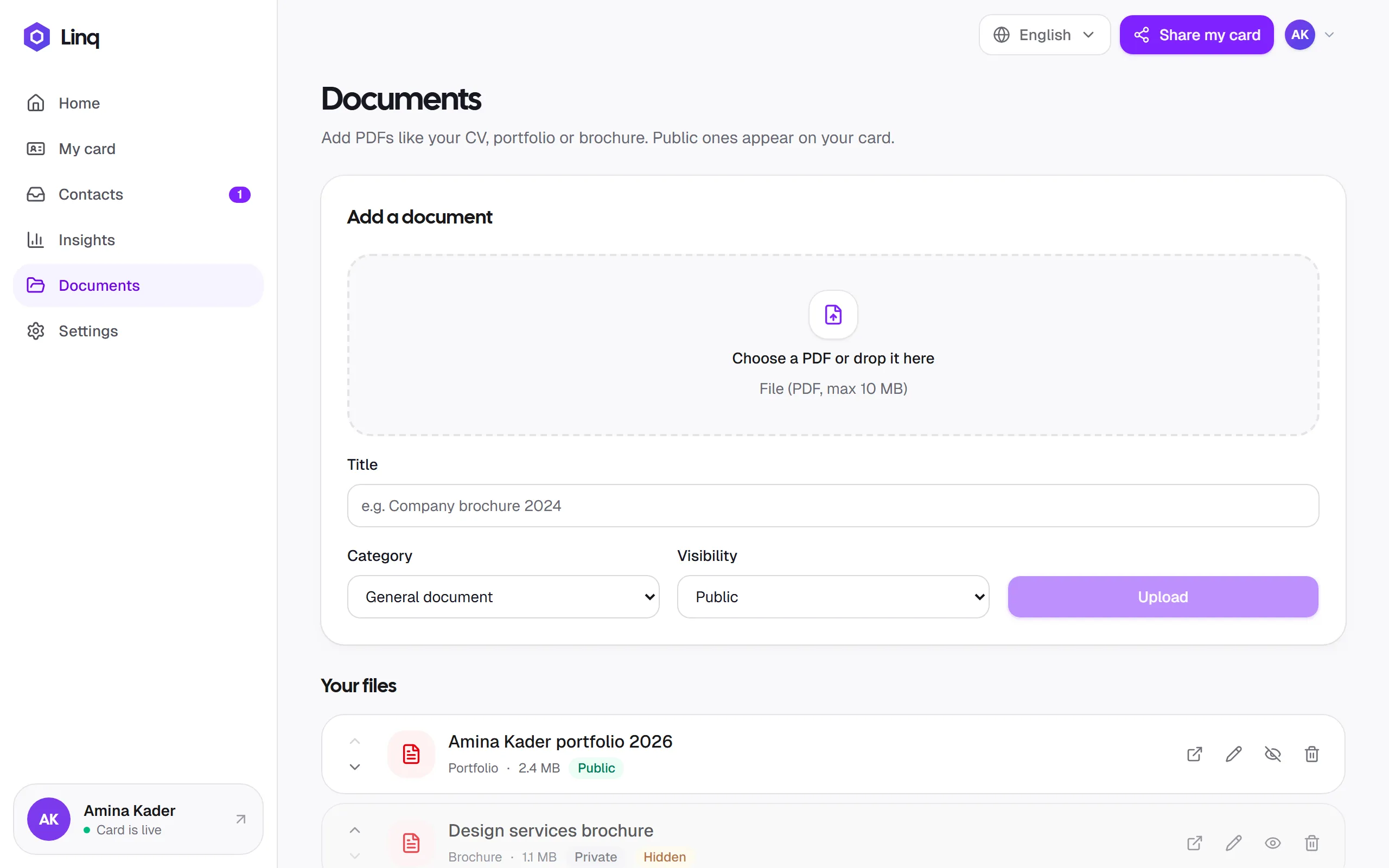
Add a document
- Open Documents (on your phone, it’s under More).
- Select the upload area, or drag a PDF onto it. Files must be PDFs of up to 10 MB.
- Check the Title. Linq suggests one from the file name. This is what visitors see.
- Choose a Category: CV, Brochure, Catalogue, Portfolio or General document.
- Choose the Visibility:
- Public: shown on your card.
- Internal or Private: kept in your account but not shown on your card.
- Select Upload.
Manage your documents
Each document in Your files has these actions:
| Action | What it does |
|---|---|
| Open | Opens the PDF in a new tab. |
| Edit (pencil) | Change the title, category or visibility. |
| Hide / Show (eye) | Temporarily removes a public document from your card without deleting it. |
| Delete (trash) | Permanently removes the document. You’ll be asked to confirm. |
| Move up / down | Changes the order documents appear on your card (on larger screens). |
Who sees what
A document appears on your card only if it’s Public, not hidden, and your card is live.
Tracking
Views and downloads of your documents are counted in Insights under Document views and Downloads.
Last updated
Need more help?
Check the FAQ or troubleshooting, or contact us.