Share kit: email signature and video call background
Put your Linq card in your email signature, on video calls and on your phone's lock screen, and download a QR code for print, all tracked in Insights.
The Share kit turns your card into ready-made things to share: a QR code for print, an email signature, a video call background and a lock screen wallpaper. Open Share kit from the menu (on your phone, under More), or select More ways to share on your Home screen.
Everything in the Share kit is free, uses your card’s details and color, and links to your card. Each one is counted separately in Insights, so you can see which brings people to your card.
Your card must be live for these links to show your details. When you edit your card, the Share kit updates with it: copy your signature or download your images again to use the new details.
QR code
A QR code that opens your card, in your card color or black. If your card color is too light to scan reliably, Linq uses black.
- Download PNG for slides, documents and social posts (1024 × 1024 pixels).
- Download SVG (for print) for flyers, posters and booth signs: it stays sharp at any size.
Scans count as QR code scans in Insights.
Email signature
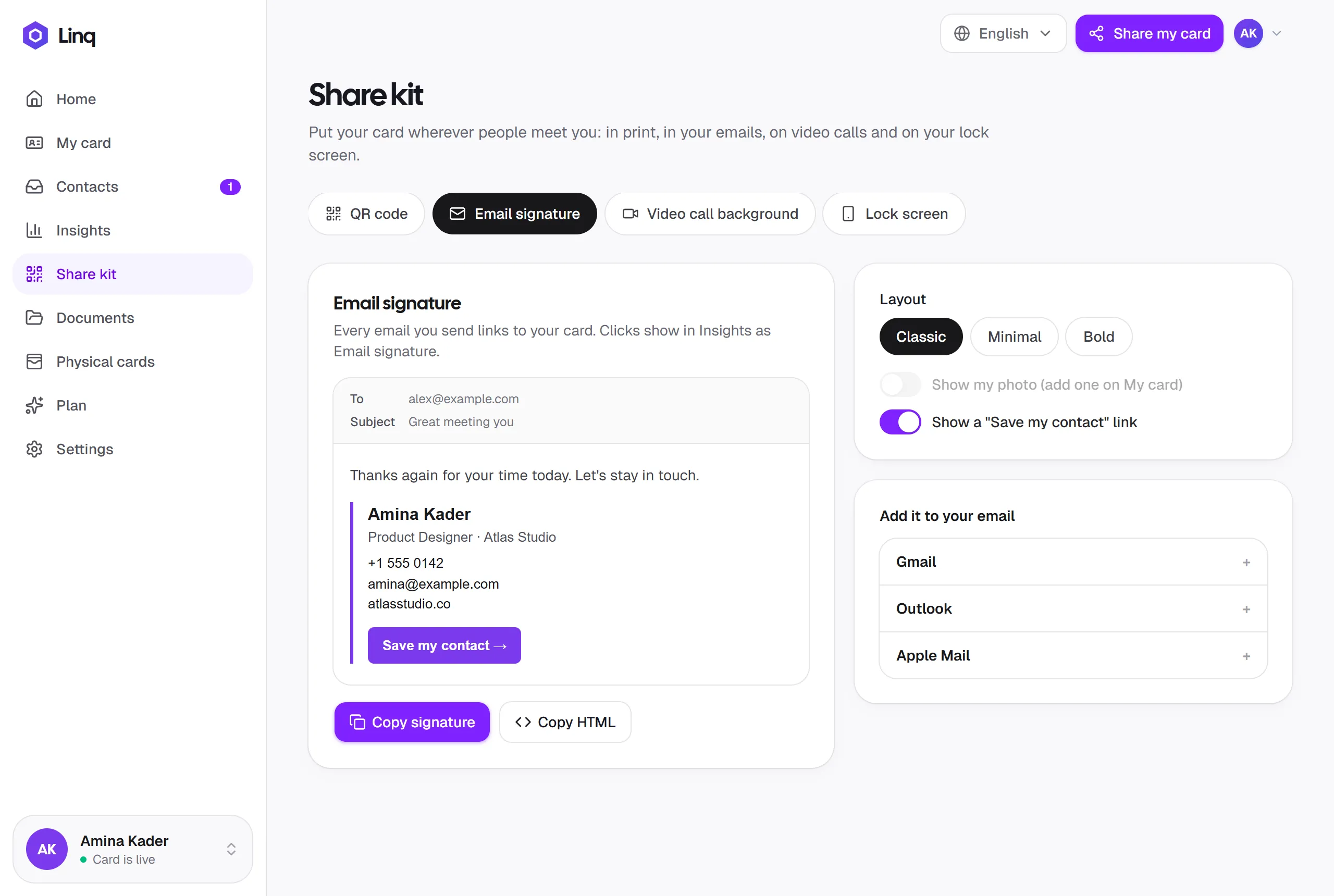
- Pick a layout: Classic (your photo next to your details), Minimal (text only) or Bold (your name on a band in your card color).
- Choose whether to show your photo and a Save my contact link to your card.
- Select Copy signature, then paste it into your email app’s signature settings. The steps for Gmail, Outlook and Apple Mail are on the page.
The signature shows your name, job title, company, phone, email and website from your card. Add them in My card first if they’re missing. Copy HTML copies the signature’s code, for email tools that ask for HTML.
Clicks on the signature’s link count as Email signature in Insights.
Video call background
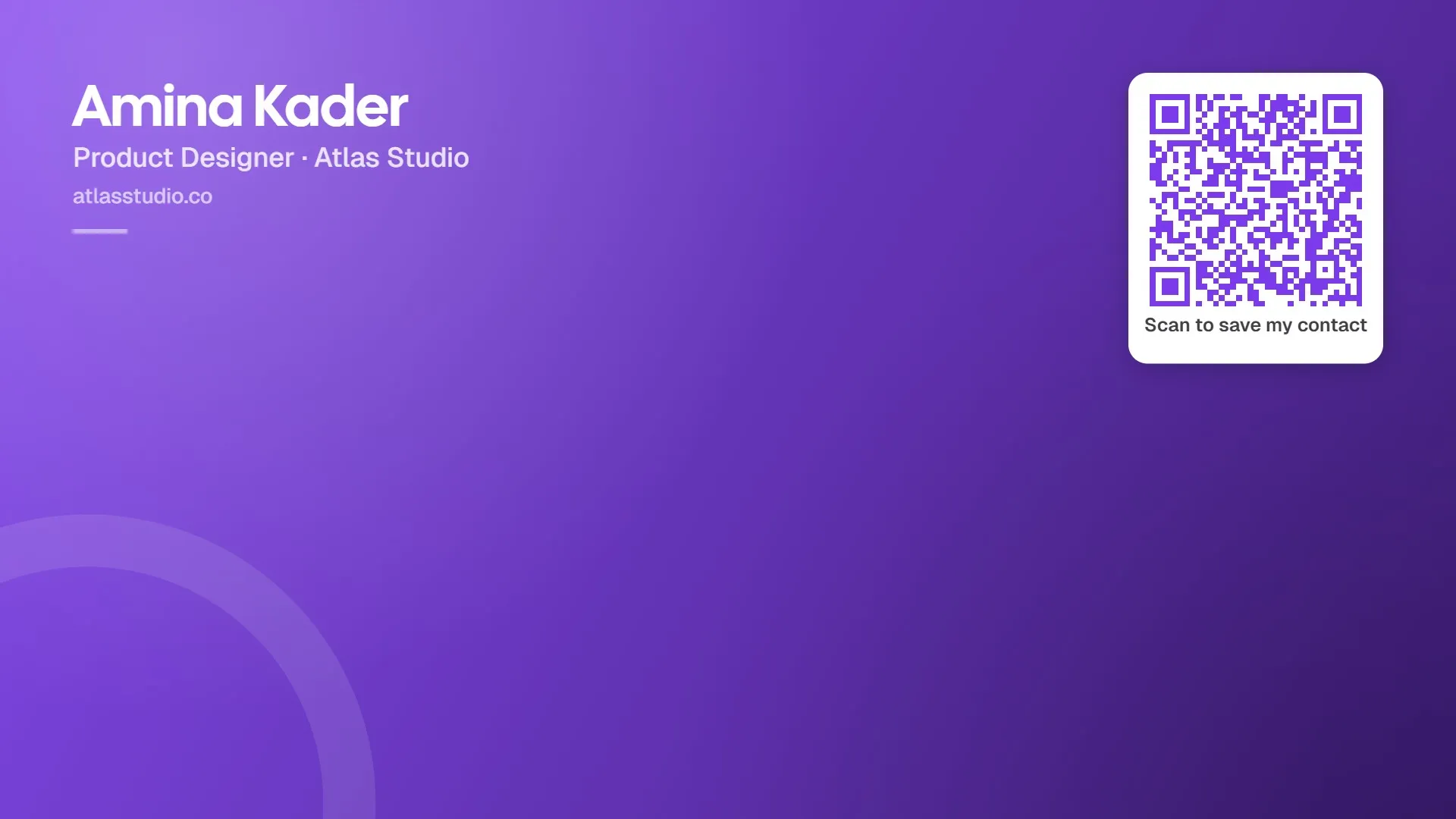
A 1920 × 1080 image with your name, role and website in one top corner and a QR code in the other, leaving the middle clear for you. Pick a style (Card color, Dark or Light), select Download image, then add it in your video app:
- Zoom: Settings → Backgrounds & effects → Virtual backgrounds → + → Add image.
- Google Meet: in a call, More options → Apply visual effects → Backgrounds → +.
- Microsoft Teams: Background effects → Add new.
Your own preview may look mirrored; the people in the call see the text the right way round. Scans count as Video call background in Insights.
Lock screen
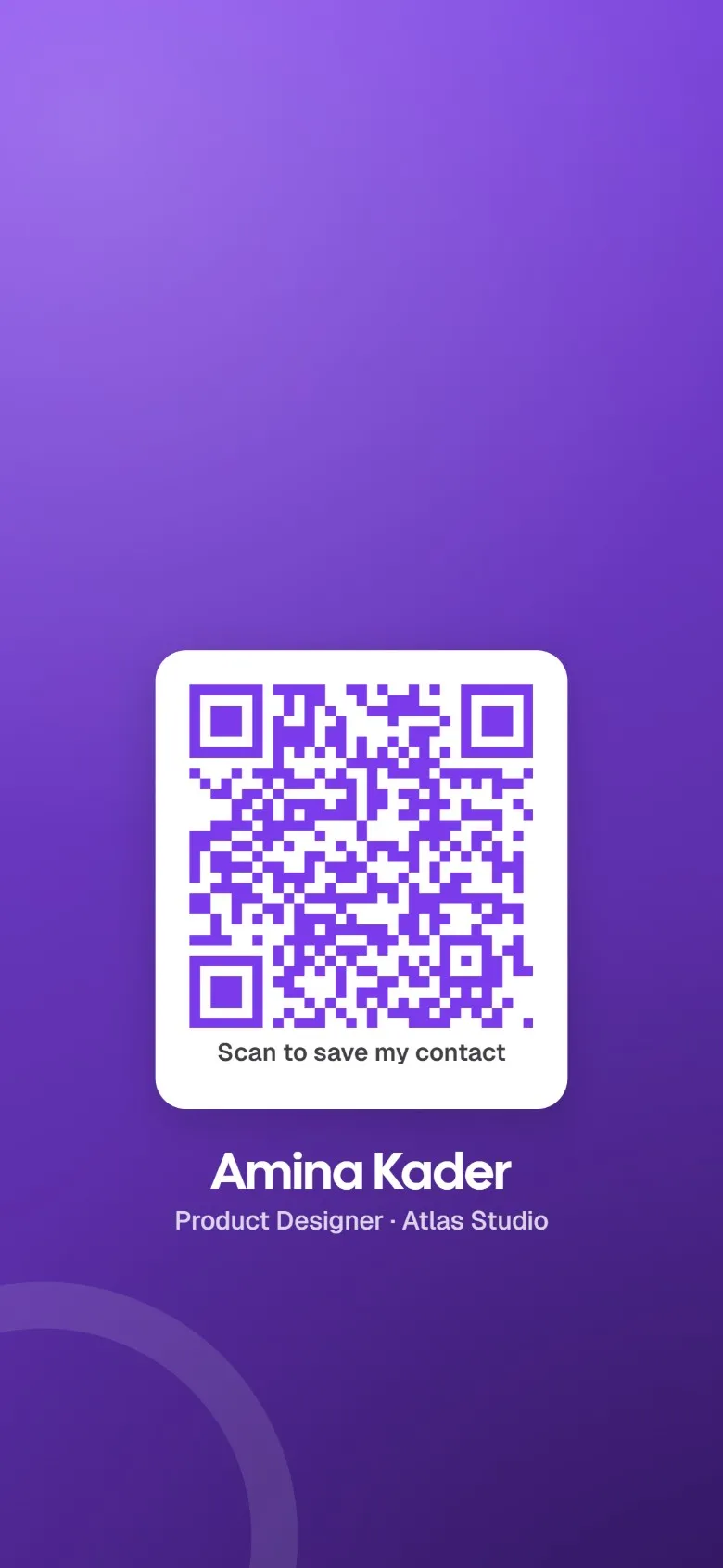
A phone wallpaper with your QR code below where the clock sits, so people can scan your card without you unlocking your phone. Pick a style, select Download image, then:
- iPhone: save the image to Photos, open it, tap Share → Use as Wallpaper, and set it as your Lock Screen.
- Android: open the image in Photos or Gallery, then ⋮ → Set as wallpaper → Lock screen.
Scans count as QR code scans in Insights.
Last updated
Need more help?
Check the FAQ or troubleshooting, or contact us.