Quick start: create and share your card
Create your free Linq digital business card, publish it and share it with a link or QR code in about two minutes.
This guide takes you from a new account to a card you can share. It takes about two minutes.
1. Create your account
Go to app.linq-business.com/sign-up and choose Continue with Google, Continue with GitHub, or sign up with your email address and a password. If you use email, you’ll get a 6-digit code to confirm it.
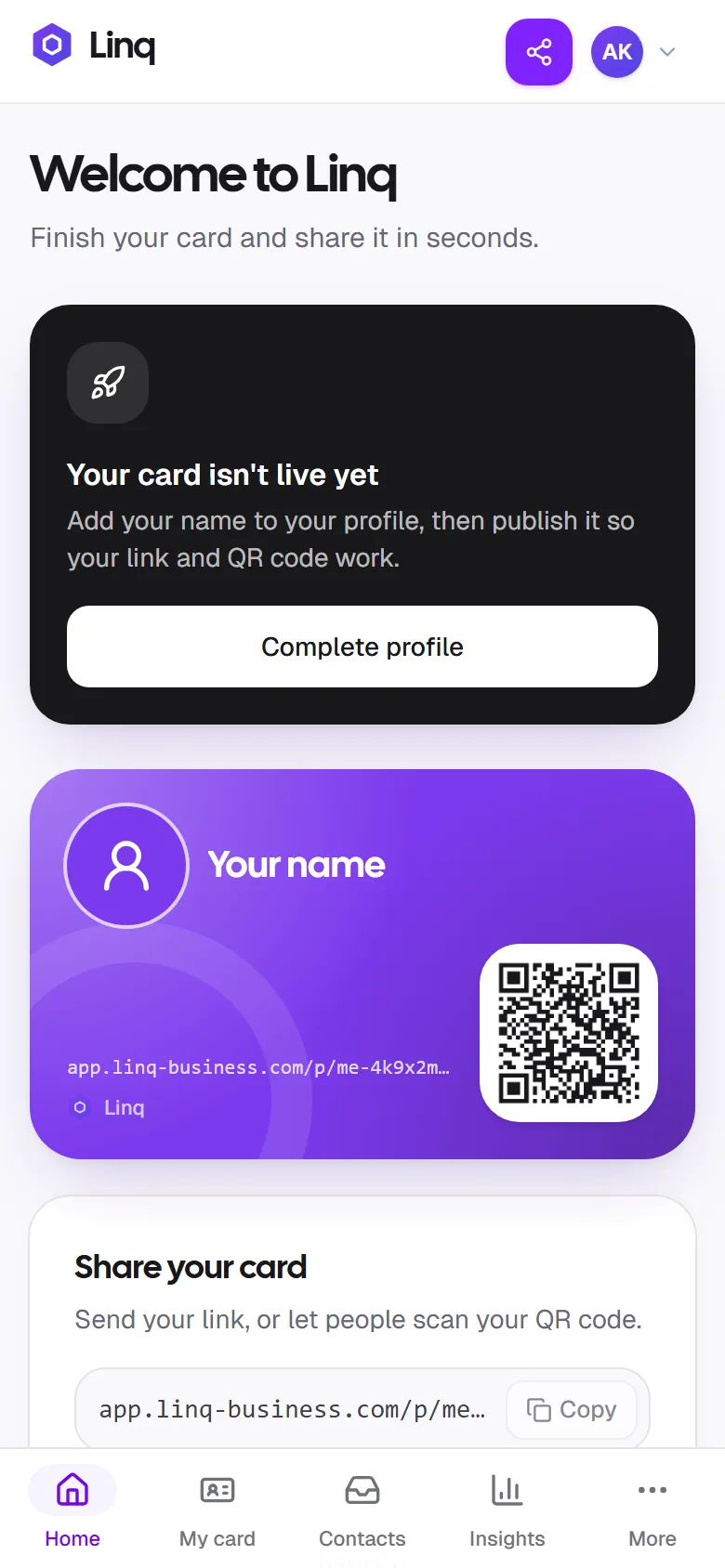
As soon as you’re in, Linq creates your card for you. It starts as a draft, so nobody can see it until you publish it.
2. Fill in your card
Open My card from the menu (on your phone, it’s the second tab at the bottom). Add:
- Your name: the only required field.
- Title and company, for example Product Designer · Atlas Studio.
- A photo: JPG, PNG or WebP, up to 5 MB.
- Contact details: phone, WhatsApp, email and website. Each one becomes a one-tap button on your card.
- Social links such as LinkedIn or Instagram.
The live preview shows your card exactly as visitors will see it. When you’re happy, select Save in the bar at the bottom of the screen.
Read Edit your card for every option.
3. Publish it
A new card is a draft. To make your link work, either:
- select Publish now on the Home screen, or
- turn on the Live switch at the top of My card.
Your link and QR code never change, even when you edit your card later. You can share them right away and keep updating your details.
4. Share it
On the Home screen you’ll find your card with its QR code, plus:
- Copy to copy your link,
- Share to open your phone’s share sheet (WhatsApp, Messages, email…),
- Save QR to download a high-resolution QR code image.
The Share my card button at the top of every page does the same from anywhere in the app. Select More ways to share to open the Share kit and add your card to your email signature, video calls and lock screen. See Share your card for more ideas.
5. Follow up
When someone sends you their details from your card, they appear in Contacts with their message. Met someone who didn’t? Select Scan or Add contact to add them yourself, note where you met and set a reminder to follow up. Check Insights to see how many people viewed your card and how they found it.
Next steps
Last updated
Need more help?
Check the FAQ or troubleshooting, or contact us.