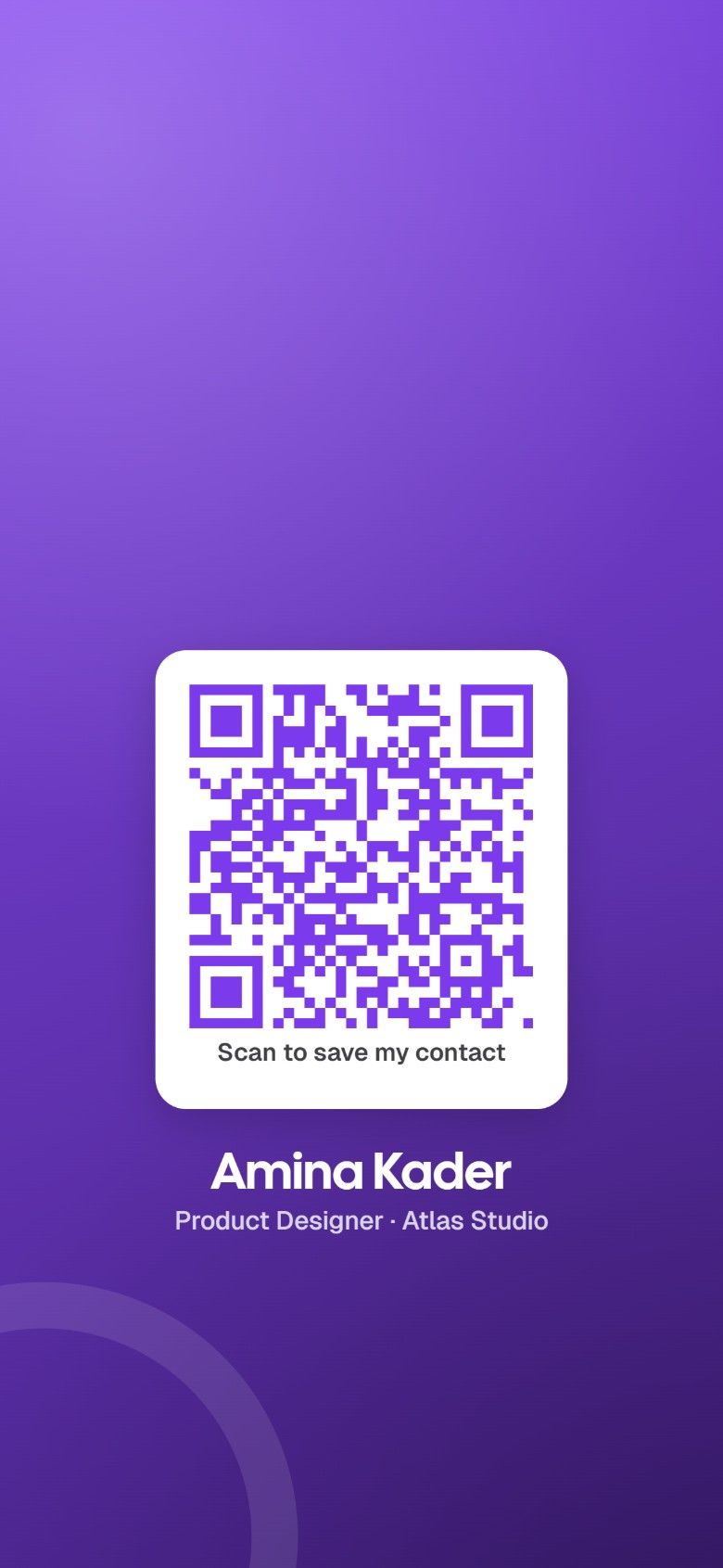
What a QR code business card is
A QR code business card is a QR code that opens your digital business card. Someone points their phone camera at it, taps the link that pops up, and sees your name, photo, role and contact details in their browser. One tap on Save contact and you're in their phone.
The code holds nothing but your card's link, and that link never changes. So you can print the code on a badge, a flyer or a paper card, and it keeps opening the current version of your card, even after you change jobs or numbers. That's the difference from a vCard QR code, which freezes your details inside the code the day you print it.
New to this? Start with what a digital business card is. If you do want the details inside the code, the free vCard QR code generator makes one with no account.
How to get your QR code, free
- Create a free card and publish it. The QR code is made for you the moment it's live.
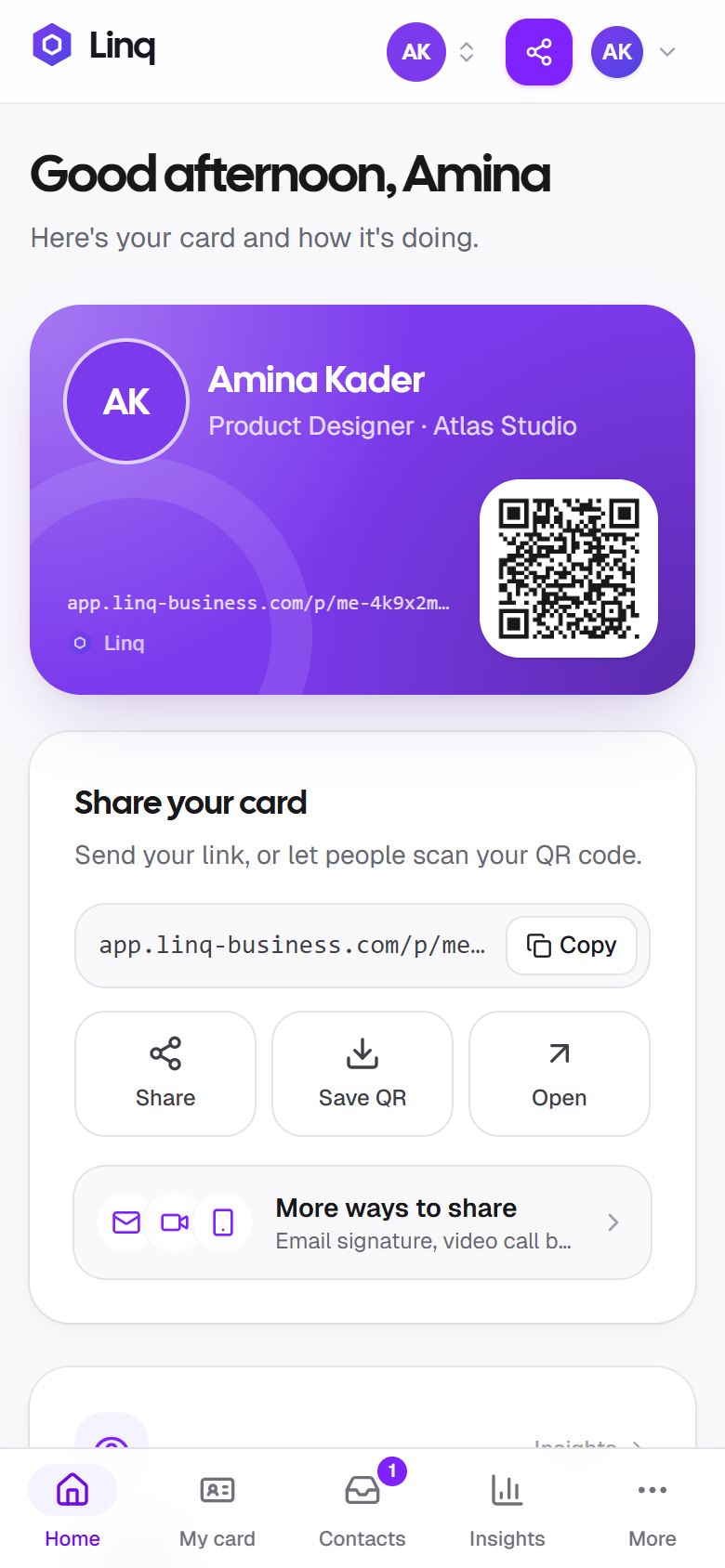
- On your Home screen, the code sits next to your card. Save QR downloads it as a high-resolution PNG.
- For print, open the Share kit and download the SVG: it stays sharp at any size.
The code comes in your card color or in black. If your color is too light to scan reliably, Linq uses black so it always works. Details in the Share kit's QR code.
Your card must be live for the code to show your details. Hide the card and the code shows “This card isn't available” until you publish again. Nothing is lost in between.
Where to put your QR code
- On your phone screen. Open Linq and show your Home screen. They scan, your card opens.
- On your lock screen. The Share kit makes a wallpaper with your code below the clock, so people can scan it without you unlocking your phone. Works on iPhone and Android. How to set it.
- In Google Wallet. On Android, keep your card as a Wallet pass with its code ready to show. The pass updates when your card does. Add it to Google Wallet.
- On slides. Put the code on the last slide of a talk, so the room can save your details before they leave.
- On video calls. The Share kit's call background has your code in the corner. Video call background.
- In print. Name badges, flyers, packaging, booth signs, and the paper business card you may still carry. Use the SVG.
- In your email signature. The signature links to your card; the code is for the places where a link can't be tapped.
Each place is counted separately in Insights (scans from your screen, print, slides and lock screen as QR code scans; the Wallet pass and the video background as their own sources), so you can see which one actually brings people in. All the ways to share your card.
What happens when someone scans it
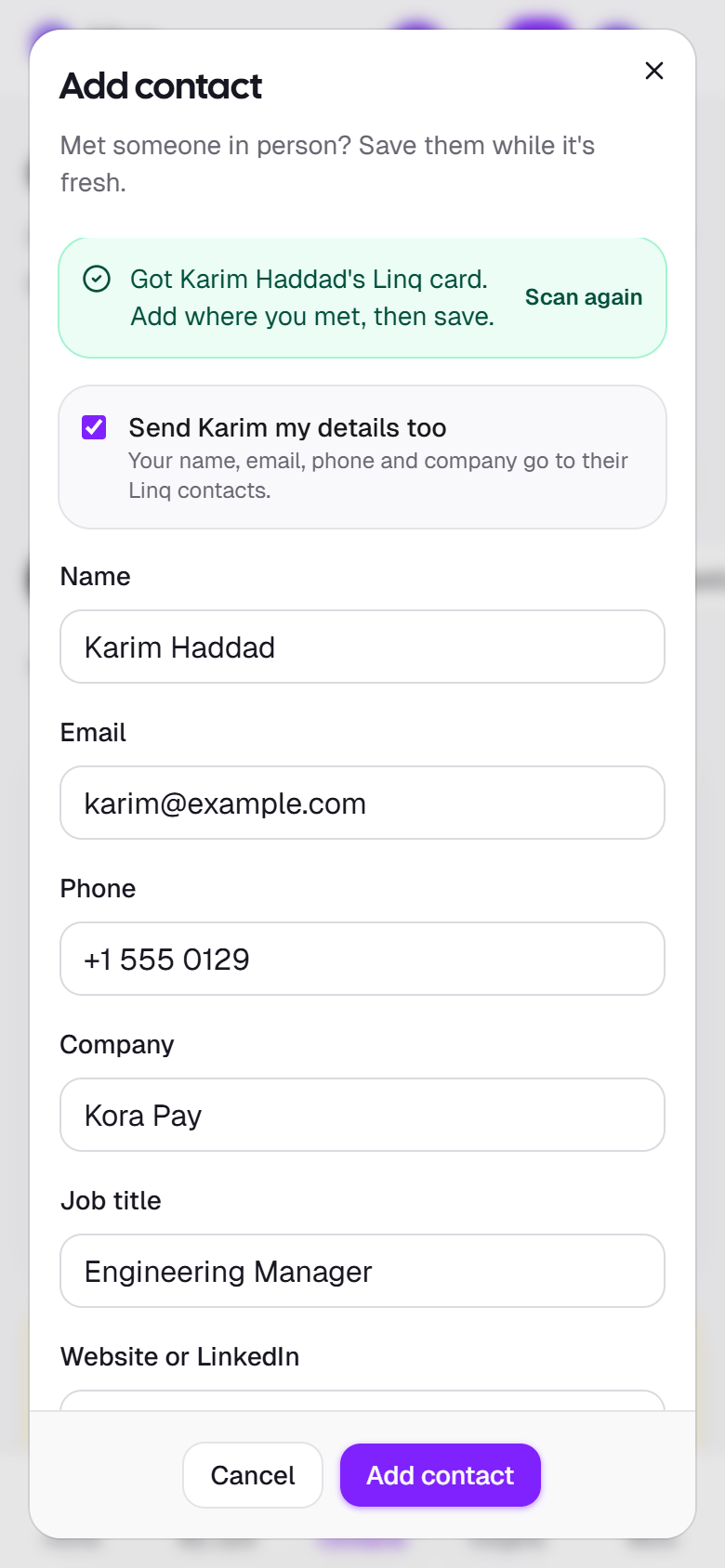
Your card opens in their browser: photo, name, role, a short bio, and buttons to call, email or message you. Save contact gives them your details as a contact file to add to their phone. Right after that, Linq asks whether they'd like to share their details with you. If they do, they land in your Contacts, with where you met and a follow-up reminder a tap away.
That's what makes a QR code worth more than a paper card: it works both ways. The full tour is in what people see when they open your card.
Scan their QR code to add them
Not everyone you meet has a card to scan, and not everyone fills in a form. So Linq scans the other way too. Open Contacts, select Scan, and point your camera at:
- Another Linq card. Everything on it is filled in, and you can send them your details in the same step.
- A vCard or MeCard code, the contact QR codes most card apps and phones make: name, company, title, email, phone and website.
- An email address or a phone number in a code.
- Any other link, such as a LinkedIn profile: the link is kept and you add the name.
Then note where you met, add a tag and a follow-up date, and they're in your Contacts. No camera? Pick a photo of the code instead. Scan and add contacts.
Make it scan first time
- Keep the white space around it. The downloaded code includes a margin; don't crop it.
- Don't stretch it. Resize with the corners, or use the SVG so it stays square and sharp.
- Dark on light. Your card color on white scans best. That's why Linq switches to black when a color is too light.
- Size for the distance. A code on a slide needs to be bigger than one on a badge. When in doubt, make it bigger.
- Test it with an iPhone and an Android phone before printing a batch.
What it costs
Nothing. The QR code, the lock screen wallpaper, the video call background and the Google Wallet pass are all on the Free plan. Pro, at $5.99 a month, adds any card color, a custom link, more cards, and the Insights that tell QR code scans apart from your other sources. See the plans.