Contacts
Everyone you've met in one place: people who shared their details from your card, people you added, with tags, where you met and follow-up reminders.
Contacts holds everyone you’ve connected with:
- people who shared their details from your card with the Stay in touch form, or in the two-way exchange after saving your contact;
- people you added yourself, by typing their details or scanning their QR code.
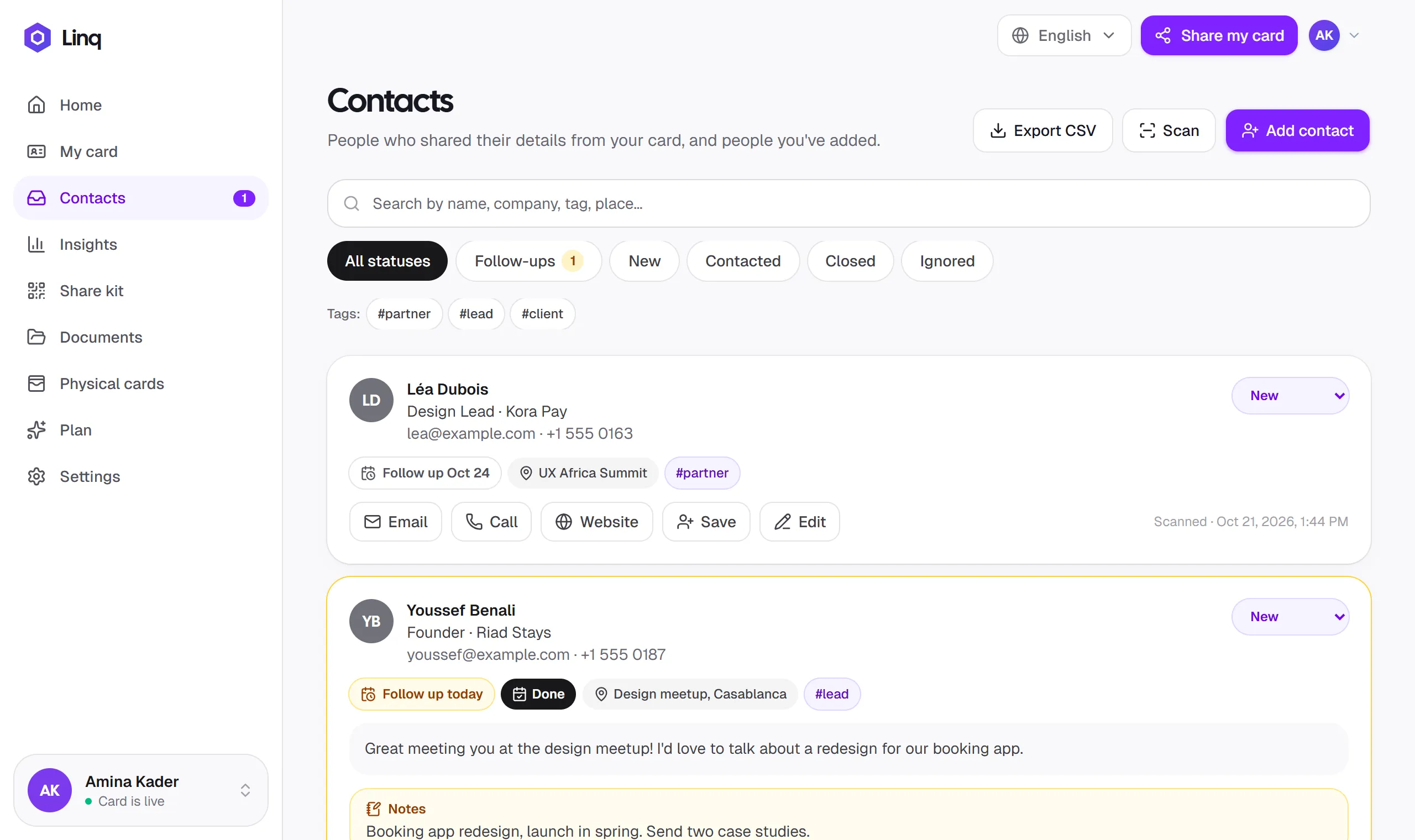
Know when someone new reaches out
New contacts show up immediately. The Contacts item in the menu shows a badge with the number of people who reached out through your card that you haven’t handled yet (those still marked New), and your Home screen lists the latest ones. People you add yourself don’t count toward the badge.
Follow up
Each contact has quick actions:
- Email: opens your email app with their address filled in.
- Call: phones them (only when they left a number).
- Website: opens their website or LinkedIn profile, when you have it.
- Save: adds them to your phone’s contacts as a vCard, including where you met and your notes.
- Edit: opens the contact to change their details and add context.
When someone wrote you a message, it’s shown in full, so you know what they’re interested in before you reply. Underneath, each contact says how they got there (Shared from your card, Added by you or Scanned) and when.
Context and follow-ups
Select Edit on a contact to keep context that only you can see. It’s never shown to the contact.
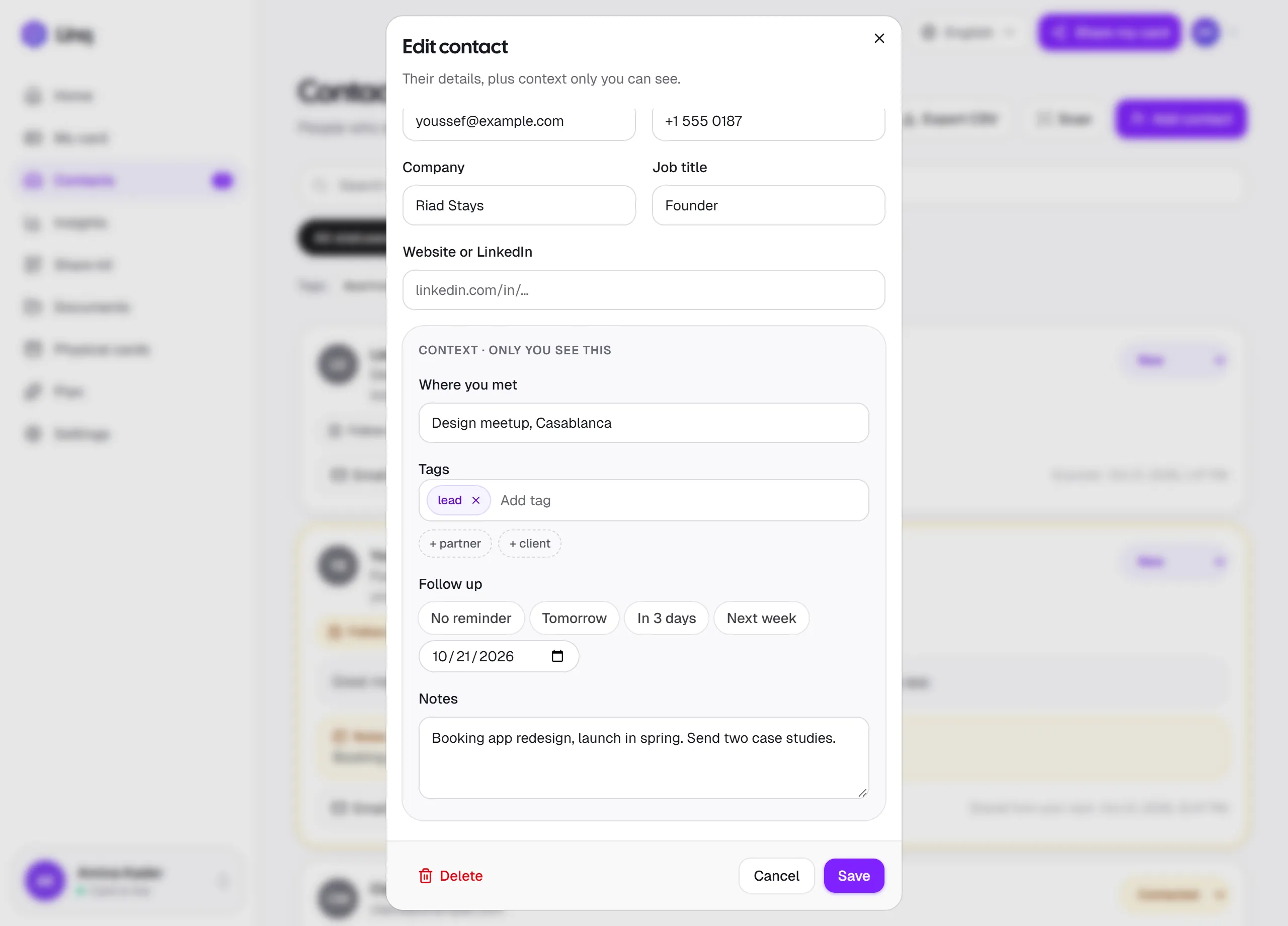
- Where you met: an event, a place or a meeting, such as UX Africa Summit. When you add several people in a row, Linq fills in the last place for a few hours, so everyone you meet at an event is filed under it.
- Tags: short labels such as investor, partner or hot lead. Type a tag and press Enter (or a comma), or pick one you’ve used before.
- Follow up: a reminder for Tomorrow, In 3 days, Next week, or a date you pick.
- Notes (Pro): what you talked about and what to follow up on.
You can also correct their name, email, phone, company, job title and website.
Follow-up reminders
Contacts with a reminder show it as a badge: Follow up today in amber, Overdue in red, or the date when it’s later. Follow-ups that are due also appear on your Home screen.
When you’ve followed up, select Done. The reminder is cleared and a contact still marked New becomes Contacted. Use the Follow-ups filter to see every contact with a reminder, soonest first.
Track where you are
Use the status label on each contact:
| Status | Use it for |
|---|---|
| New | Just arrived, or added and not followed up yet. This is the default. |
| Contacted | You’ve replied or called. |
| Closed | Done: the conversation is finished or the deal is made. |
| Ignored | Not relevant, such as spam. |
Find someone
- Search by name, email, phone, company, job title, place, tag or note.
- Filters: All statuses, Follow-ups, New, Contacted, Closed and Ignored.
- Tags: select a tag under the filters (or on a contact) to see everyone with it. Select it again to clear it.
Private notes
With Pro, add notes in the Notes field when you edit a contact. Notes show on the contact in a yellow box; select it to edit. On the Free plan, the Notes field shows a Pro badge, and notes you kept while on Pro stay visible.
Export your contacts
With Pro, select Export CSV at the top of Contacts to download a spreadsheet of all your contacts: name, email, phone, company, job title, website, message, status, where you met, tags, follow-up date, notes, source, card and the date received. It opens in Excel, Google Sheets or Numbers, and you can import it into most CRMs.
On the Free plan, Export CSV shows a Pro badge.
To send each new contact to your CRM automatically instead, see Send contacts to your CRM.
Delete a contact
Select Edit, then Delete at the bottom of the window, and confirm. Deleting is permanent. To keep someone out of your way without deleting them, set their status to Ignored.
On your phone
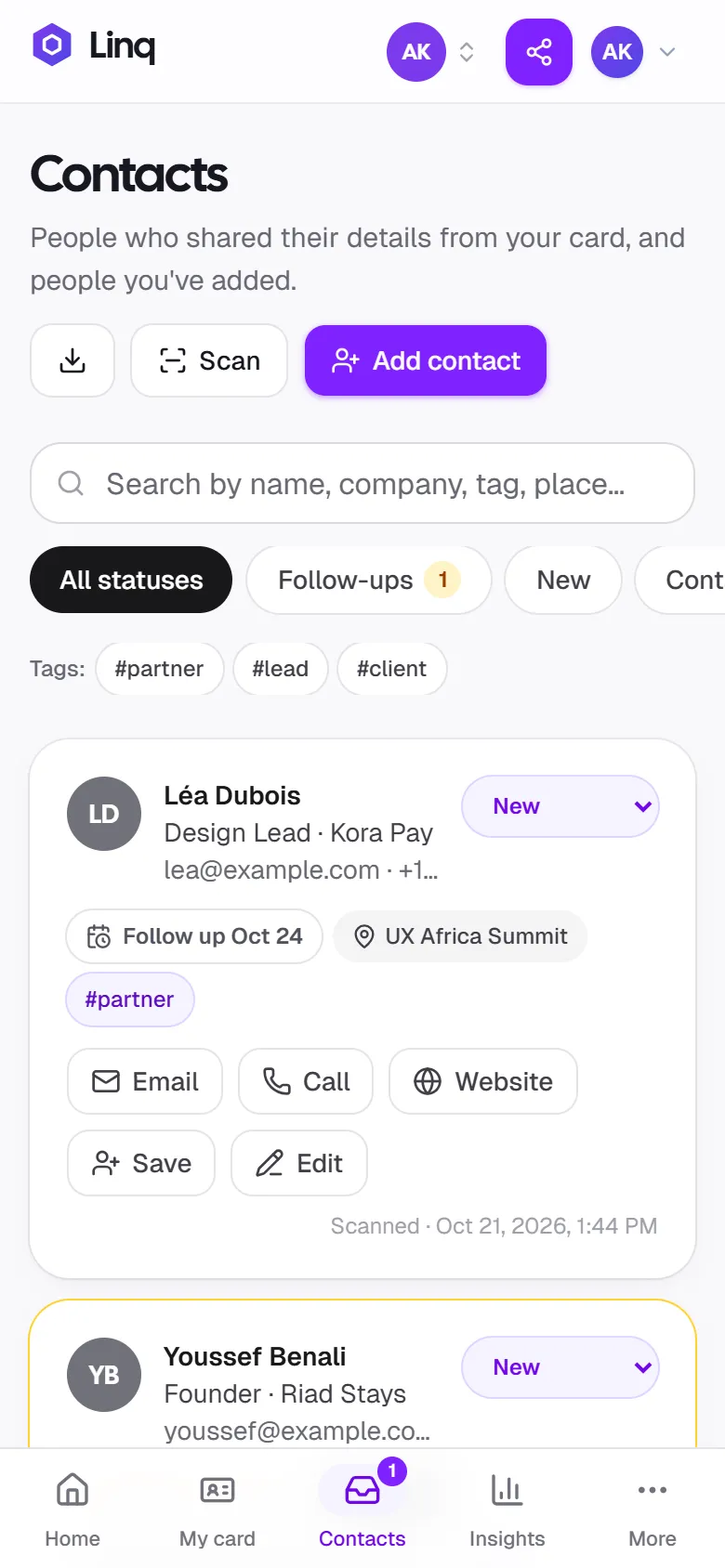
Contacts is the third tab at the bottom of the screen, with the same badge for new contacts. Scan and Add contact are at the top, so you can save someone while you’re still talking.
No contacts yet?
Share your card: the more people see it, the more will send you their details. See Share your card and the Share kit for ideas. Met someone who doesn’t use Linq? Add them yourself.
Last updated
Need more help?
Check the FAQ or troubleshooting, or contact us.