Share your card: link, QR code and more
Copy your Linq link, share it from your phone, download your QR code, and the best places to put it so people can reach you.
Every Linq card has one permanent link, like app.linq-business.com/p/your-card, and a QR code that opens it. Both keep working when you edit your card. With Pro you can choose a custom link, and your old link keeps working too.
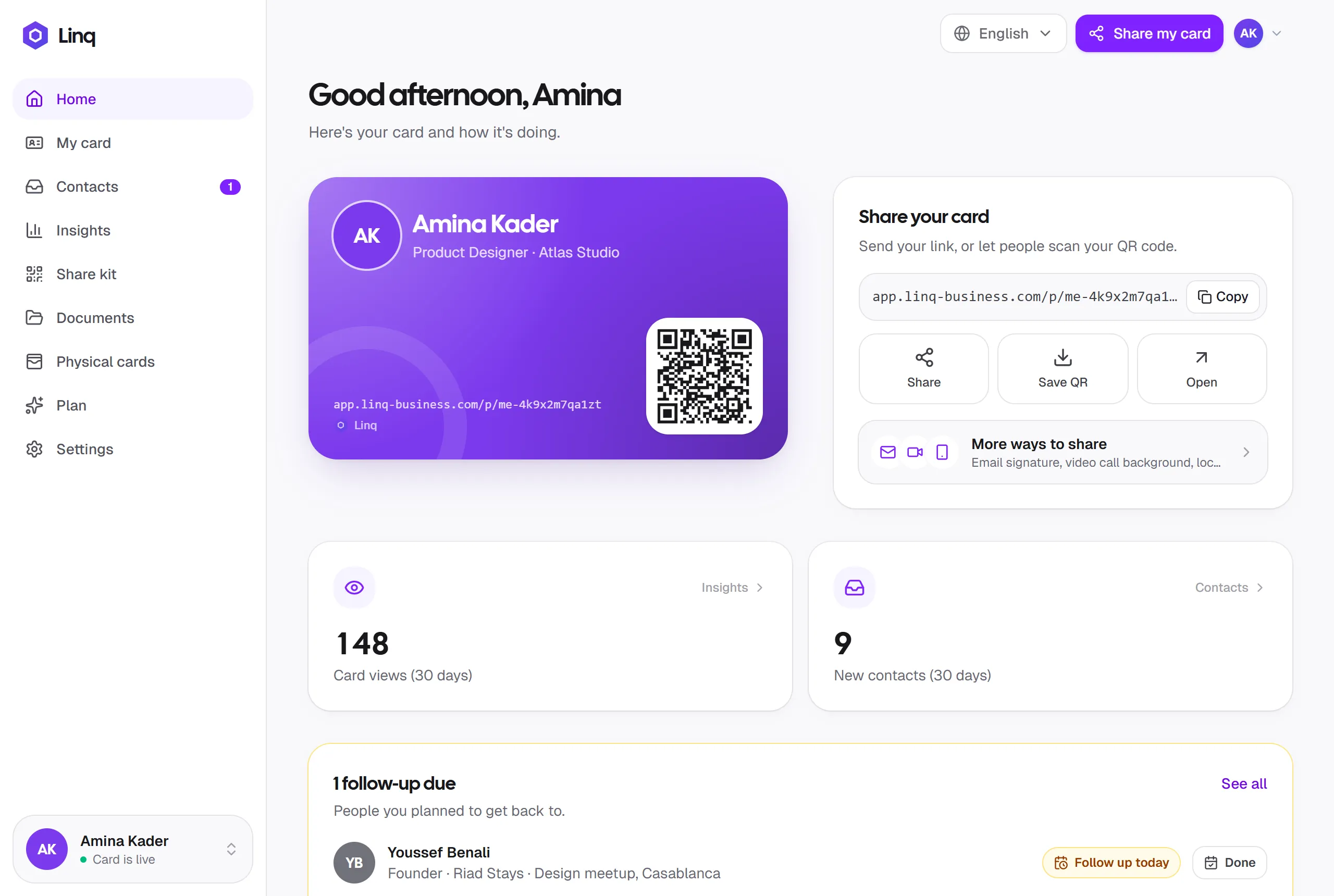
Your card must be live for the link and QR code to show your details.
Share from the Home screen
The Share your card panel next to your card has:
| Button | What it does |
|---|---|
| Copy | Copies your link so you can paste it anywhere. |
| Share | Opens your phone’s share sheet (WhatsApp, Messages, email, AirDrop…). On a computer it copies the link. |
| Save QR | Downloads your QR code as a high-resolution PNG image, ready to print. |
| Open | Opens your live card in a new tab, so you can see it like a visitor. |
| More ways to share | Opens the Share kit: email signature, video call background, lock screen and a QR code for print. |
Share from anywhere in the app
The Share my card button at the top of every page (the share icon on phones) shares your link the same way, so you don’t have to go back to Home.
Show your QR code in person
Open Linq on your phone and show the card on your Home screen. The other person scans the QR code with their camera and your card opens. They don’t need to install anything.
Where to put your link and QR code
- Email signature: the Share kit makes one from your card, ready to paste into Gmail, Outlook or Apple Mail.
- Video calls: use the Share kit’s video call background, with your QR code in the corner.
- Phone lock screen: the Share kit’s lock screen wallpaper puts your QR code below the clock, so it’s always one glance away.
- Slides and talks: put the QR code on your last slide so the audience can save your details.
- Social profiles: add your link to your LinkedIn, Instagram or X bio.
- Printed materials: flyers, packaging, name badges and stands at events.
- Messaging apps: send your link after a call or meeting, so your details arrive in one message.
When they share back
People who open your card can send you their details with the Stay in touch form, and after they tap Save contact they’re asked to share their details back. You can also scan their QR code to add them yourself.
How shares are counted
Links shared with Copy, Share or Share my card are counted as Shared link in Insights, and scans of your QR code (including the lock screen) as QR code scans. Clicks on your email signature and scans of your video call background are counted as Email signature and Video call background. If someone types your address or opens a link copied from their browser’s address bar, the visit is counted as Other.
Last updated
Need more help?
Check the FAQ or troubleshooting, or contact us.