New in Linq: scan contacts, follow-up reminders and the Share kit
Add the people you meet by scanning their QR code, swap details both ways, get reminded to follow up, and put your card in your email signature and video calls.
A digital business card is a great first impression. But the introduction is only half the job: the other half is remembering who you met and actually getting back to them. Today’s update is about that second half, plus new ways to put your card in front of people.
Everything below is available on the Free plan, except where we mention Pro.
Both sides of the exchange
Until now, your card shared your details and waited for people to fill in the Stay in touch form. Now, the moment someone taps Save contact, Linq asks them to share their details back. It’s the same short form, opening right where they are: name, an email or a phone number, and optionally their company and job title.
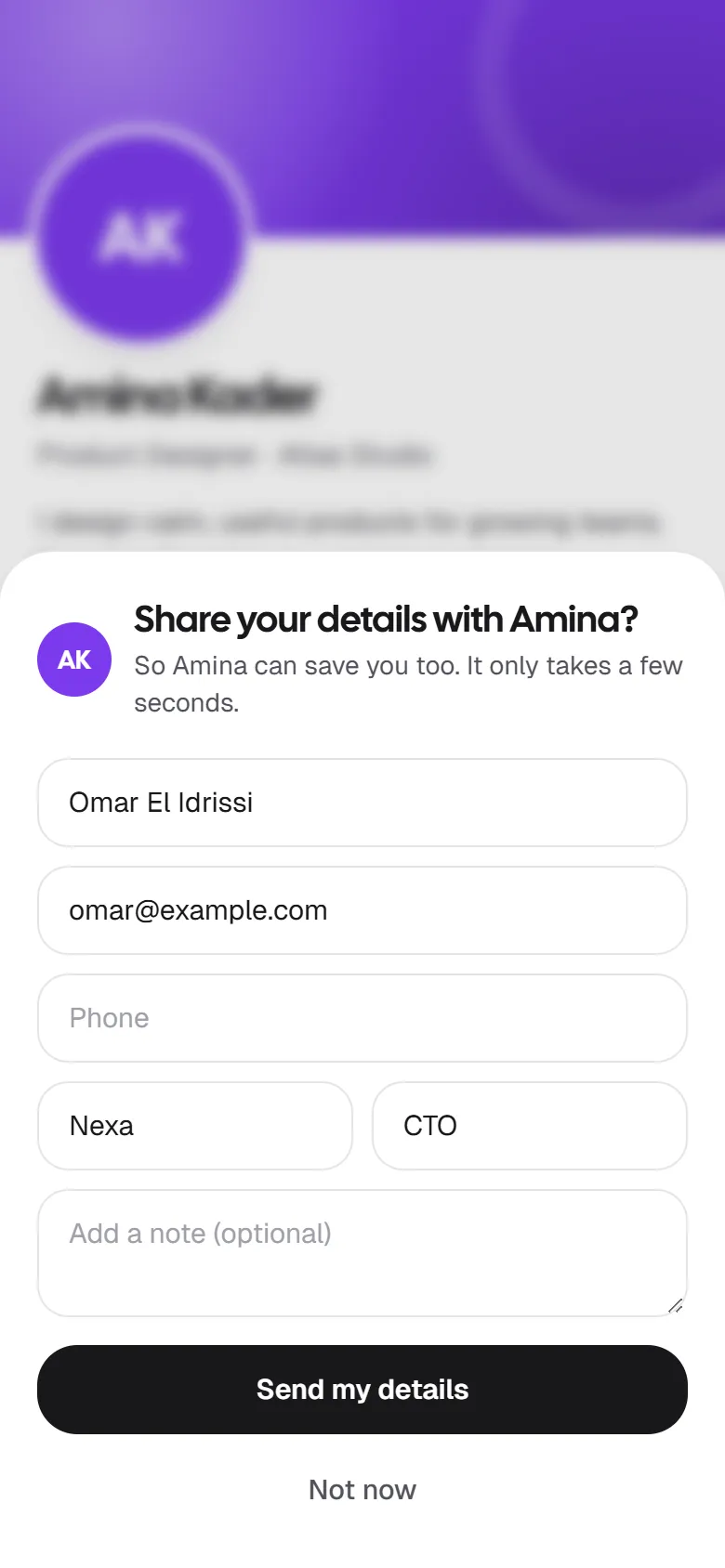
Email is no longer required either: a phone number is enough, which is how many people prefer to stay in touch.
Scan the people you meet
Not everyone reaches out first, so you can now add people yourself. In Contacts, select Scan and point your camera at their QR code:
- Another Linq card: their name, role, company, email, phone and website fill in from their card, and you can send them your details in the same step, so you both have each other.
- A vCard or MeCard, the contact QR codes most card apps and phones create.
- Anything else with an email, phone number or link, such as a LinkedIn profile.
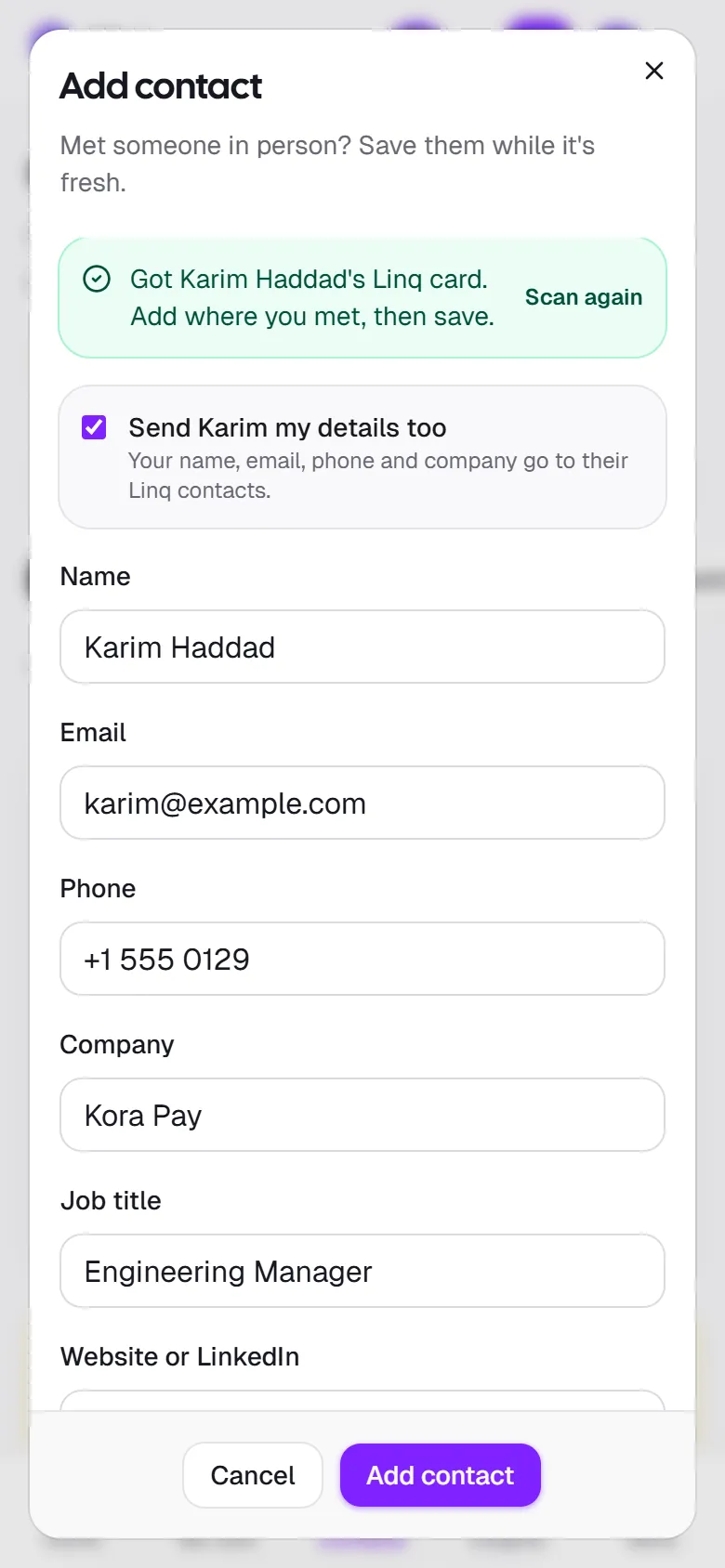
No camera handy? Choose a photo or a screenshot of the code, or type their details. If they’re already in your contacts, Linq tells you before you add them twice. How scanning works.
Contacts with context
Three weeks after an event, a list of names isn’t much help. So every contact now keeps context that only you can see:
- Where you met, such as a conference, a dinner or a client workshop. At an event, Linq fills in the last place for a few hours, so everyone you add is filed under it.
- Tags like investor, partner or hot lead. Select a tag to see everyone with it.
- Company, job title and website or LinkedIn, for people who shared them or that you added.
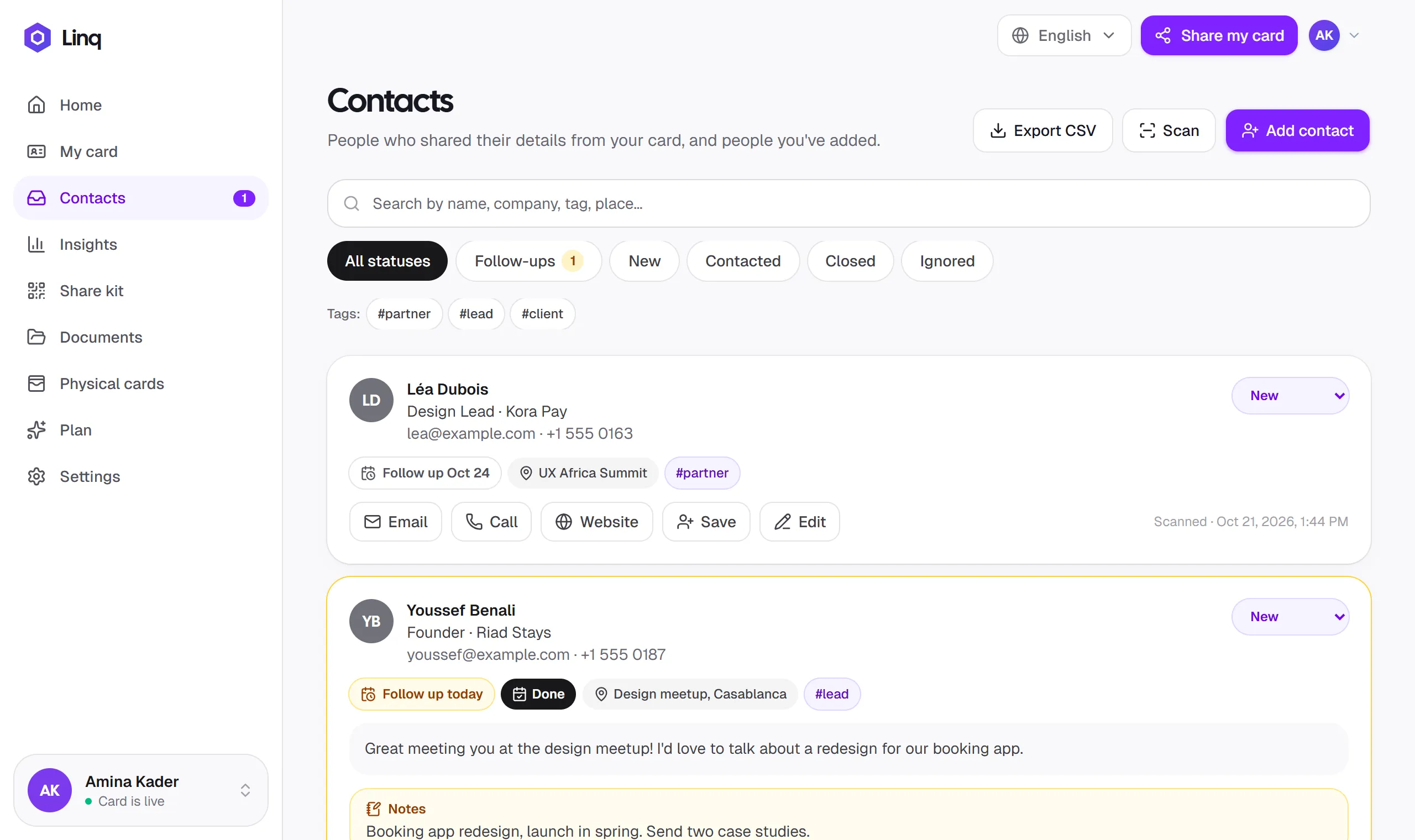
Contacts also has a search box, so you can find someone by name, company, tag, place or note.
Follow-up reminders
When you add or edit a contact, set a reminder: tomorrow, in 3 days, next week or any date. Due follow-ups show on your Home screen and under a new Follow-ups filter, overdue ones in red. When you’ve written back, select Done: the reminder clears and the contact is marked as contacted. Context and follow-ups.
The Share kit
Your QR code on your phone is great in person. The new Share kit puts your card everywhere else:
- An email signature built from your card, in three layouts, with a “Save my contact” button. Copy it and paste it into Gmail, Outlook or Apple Mail.
- A video call background with your name and a QR code, so people on Zoom, Google Meet or Teams can save your details during the call.
- A lock screen wallpaper with your QR code below the clock, so you can share your card without unlocking your phone.
- A QR code for print, in your card color, as a PNG or a sharp SVG for flyers and booth signs.
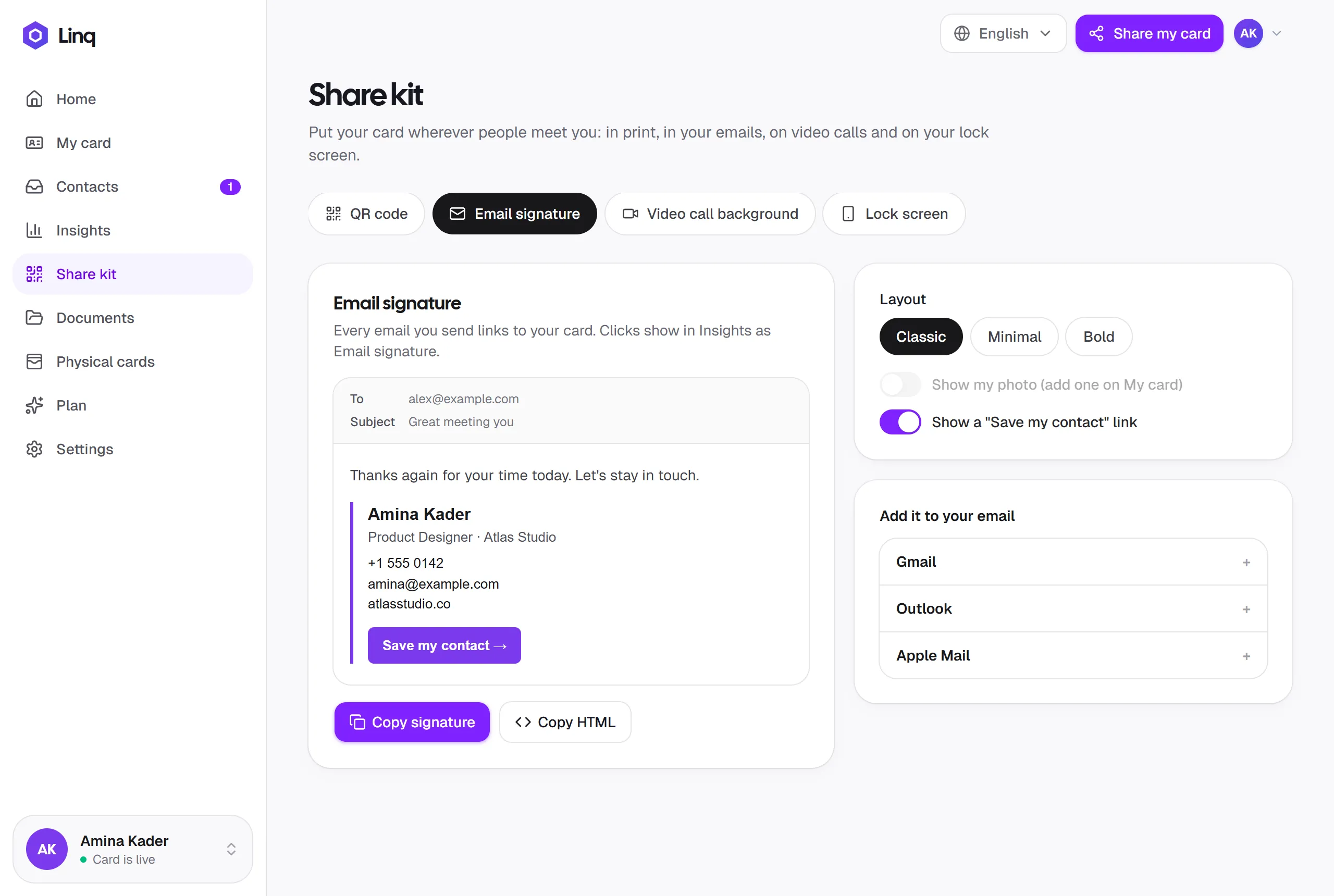
Open it from Share kit in the menu, or More ways to share on your Home screen. Using the Share kit.
Send contacts to your CRM (Pro)
With Pro, every new contact can go straight to the tool where you follow up. In Settings → Integrations, paste a webhook URL from Zapier, Make, a HubSpot workflow or your own server, and each contact is sent the moment they share their details or you scan them, with where you met and your tags included. Set up an integration.
See what’s working
Each Share kit item links to your card with its own source, so Insights now shows views from your email signature and your video call background next to QR scans and shared links. And with Pro, a new Where you meet people chart adds up your contacts by event, so you can see which ones were worth going to. Understanding Insights.
What stays the same
Your card, link and QR code don’t change, and neither does anything you’ve already set up. Private notes and contact export are still part of Pro, now with every new field included in the export, alongside the new integrations.
Open Contacts to try scanning, or the Share kit to set up your email signature. Questions or ideas? Get in touch.